Review and Save
The Review area summarizes the template and lists anything that still needs attention before you save.
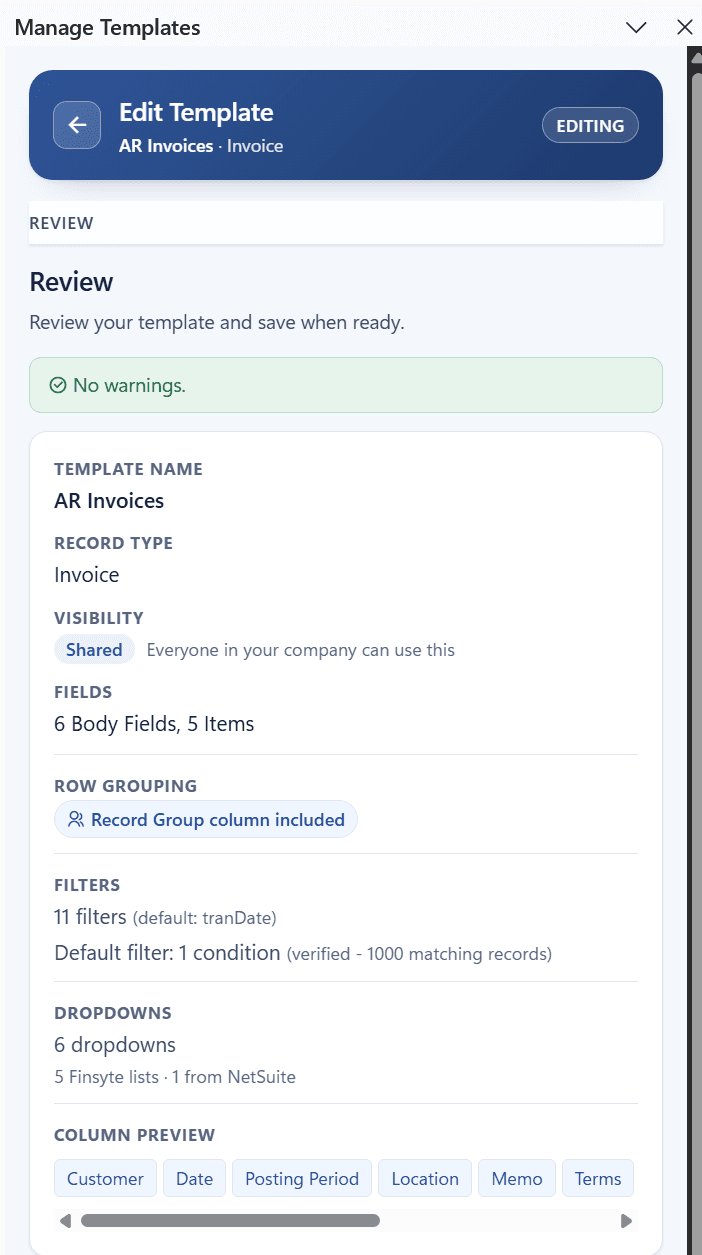
The summary shows the Template Name, Record Type, Visibility, number of Fields, whether Row Grouping is on, the Filters, the Dropdowns, and a Column Preview of the sheet's headers in order.
Warnings
| Warning | What to do |
|---|---|
The template has no name yet. | Enter a name on Basics. |
No columns are selected. | Add at least one column on Columns. |
N optional filters have not been checked with NetSuite. | Select Test filters on Filters. |
N filters were removed because NetSuite could not verify them: … | The listed optional filters failed their test and were taken off the template. Save again to continue. |
The default filter has not been verified with NetSuite yet. | Select Test filter on Filters. |
The default filter currently returns 0 results. | Check the conditions. Saving is allowed, but downloads will return nothing until the filter matches records. |
N dropdown lists are set to From NetSuite with no source table. | Enter a Source list or change the source on Dropdowns. |
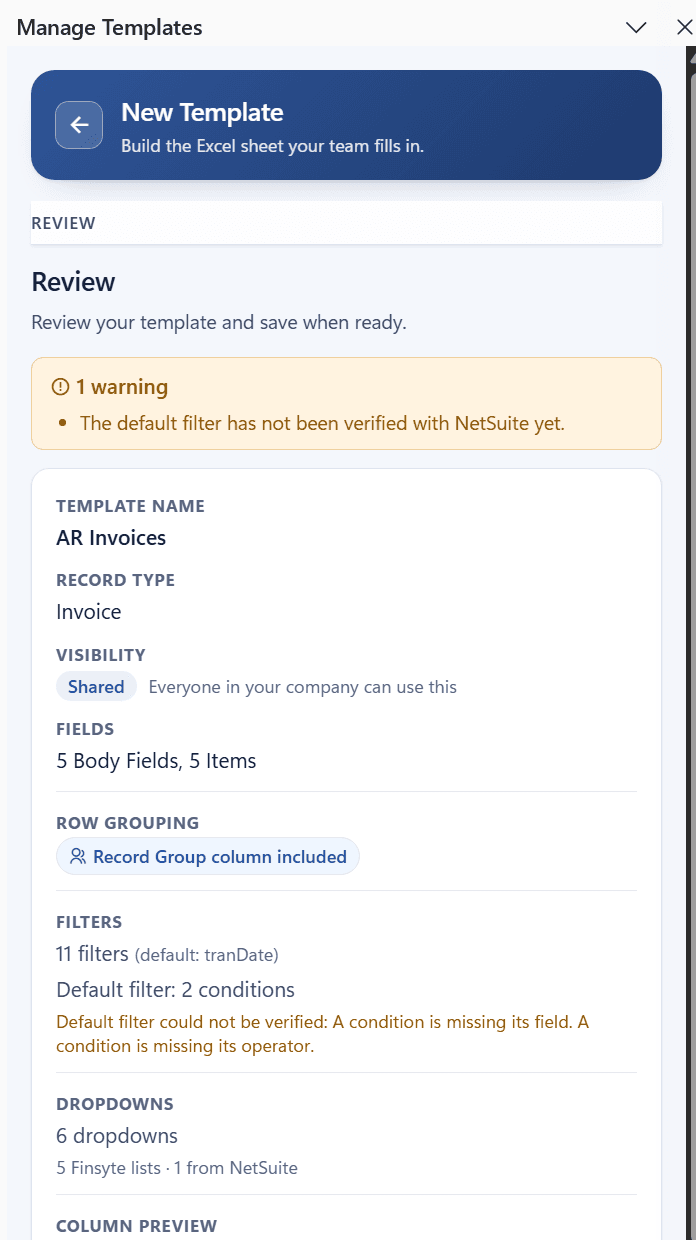
Save the Template
Select Save template. Saving checks, in order, that the template has a name and record type, that at least one column is selected, that every optional filter passed its test, that the default filter passed its test, and that every dropdown list is complete. If a check fails, the editor explains what to fix.
After saving, the portal returns to the Templates list and Excel picks up the change. The template appears in the Bulk Records menu within a moment. If it does not, select Bulk Records > Refresh Template Definitions.
Edit a Template Later
Select the template's card on the Templates list to reopen it. Everything except the record type can be changed.
Important: Editing a template does not change sheets that were already created from it. Create a new sheet to get the new layout, filters, or default filter. See Keep Templates Up to Date.
Next step: Keep Templates Up to Date