Suppressing Zero Rows on Financial Reports
Financial reports often include rows that contain only zero values, which can add visual noise and make it harder to focus on meaningful data. By using a simple Excel-based toggle, you can give report users the ability to dynamically show all rows or only rows with non-zero values without modifying the underlying data.
This approach uses data validation, a helper column, and filtering to control row visibility in a flexible and user-friendly way.
Walkthrough
Step 1: Create a List using Data Validation
-
At the top of your report, choose a single cell to act as a control (E2).
-
Apply Data Validation to that cell by going to Data > Data Validation.

-
Set the data validation to List with options of All and Non-Zero separated by a comma.

-
Confirm your cell works as expected.
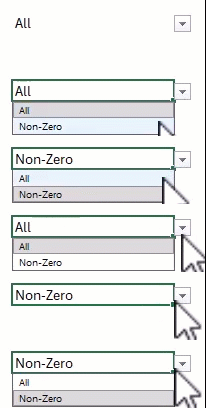
This cell will determine whether the report displays all rows or suppresses rows that contain only zero values.
Step 2: Add a helper column to evaluate row values
-
Insert a new column (Column B) to the left side of your financial report. This column will determine whether each row should be visible.
-
In column B, cell B18 add the following Excel Function.
=IF($E$2="All","Y",LET(r,E19:P19,IF(COUNT(r)=0,"Y",IF(MAX(ABS(r))>0,"Y","N"))))[!NOTE] The LET excel function allows the variable of "r" to reference the range of E19:P19. This is the range of columns included for the financial report. There is more than one function that could result in a successful evaluation of non-zero rows. Here is an additional example of a function that will work:
=IF($E$2="All","Y",IF(COUNT(E18:P18)=0,"Y",IF(MAX(ABS(E18:P18))>0,"Y","N"))) -
Apply this function all the way down column B to the last row.
Step 3: Apply a filter to the helper column
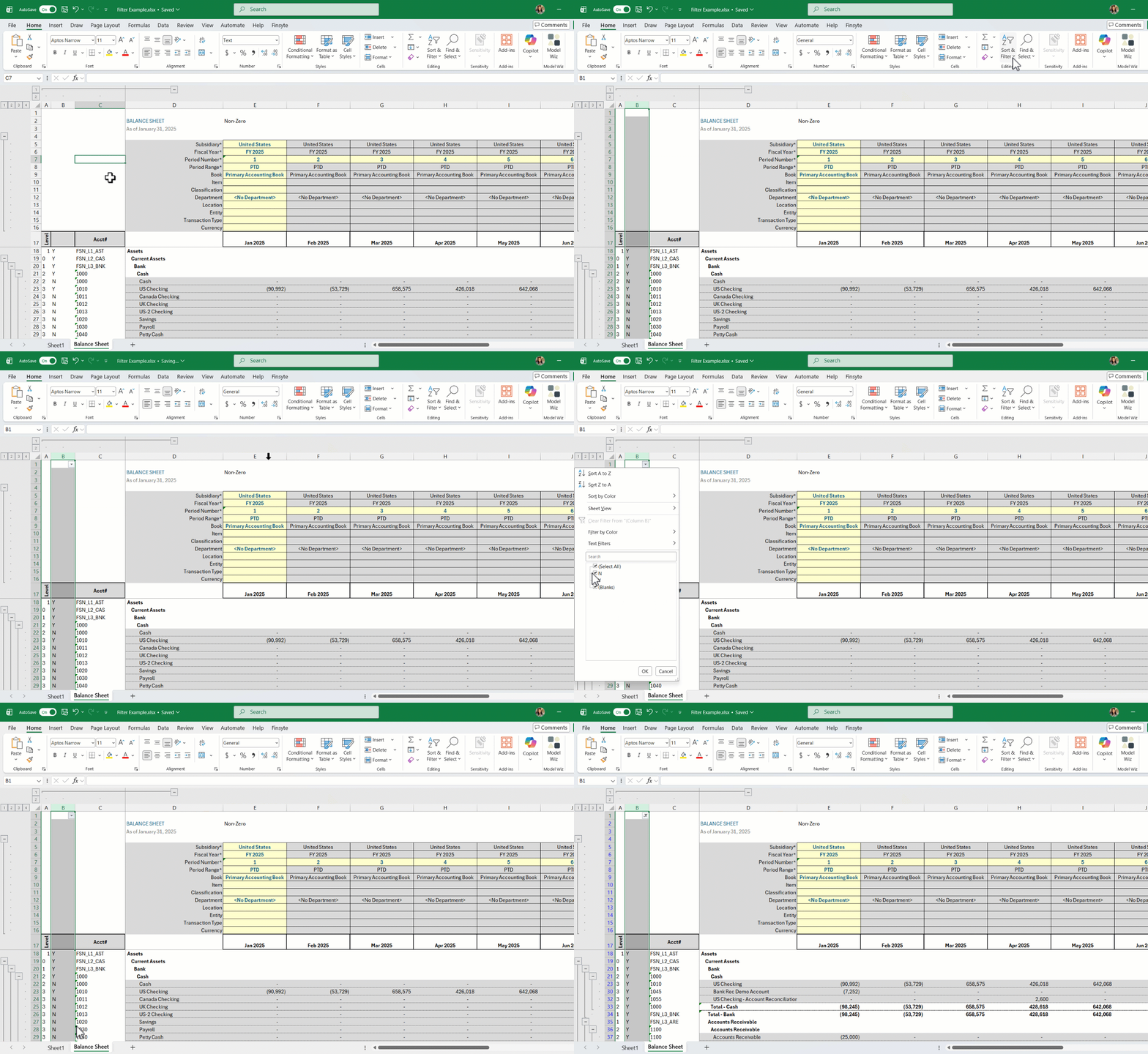
- Highlight column B and select Filter from the Home ribbon to apply a filter dropdown option.
- Select the created Filter dropdown and uncheck "N" only.
Step 4: Reapply the filter when switching views
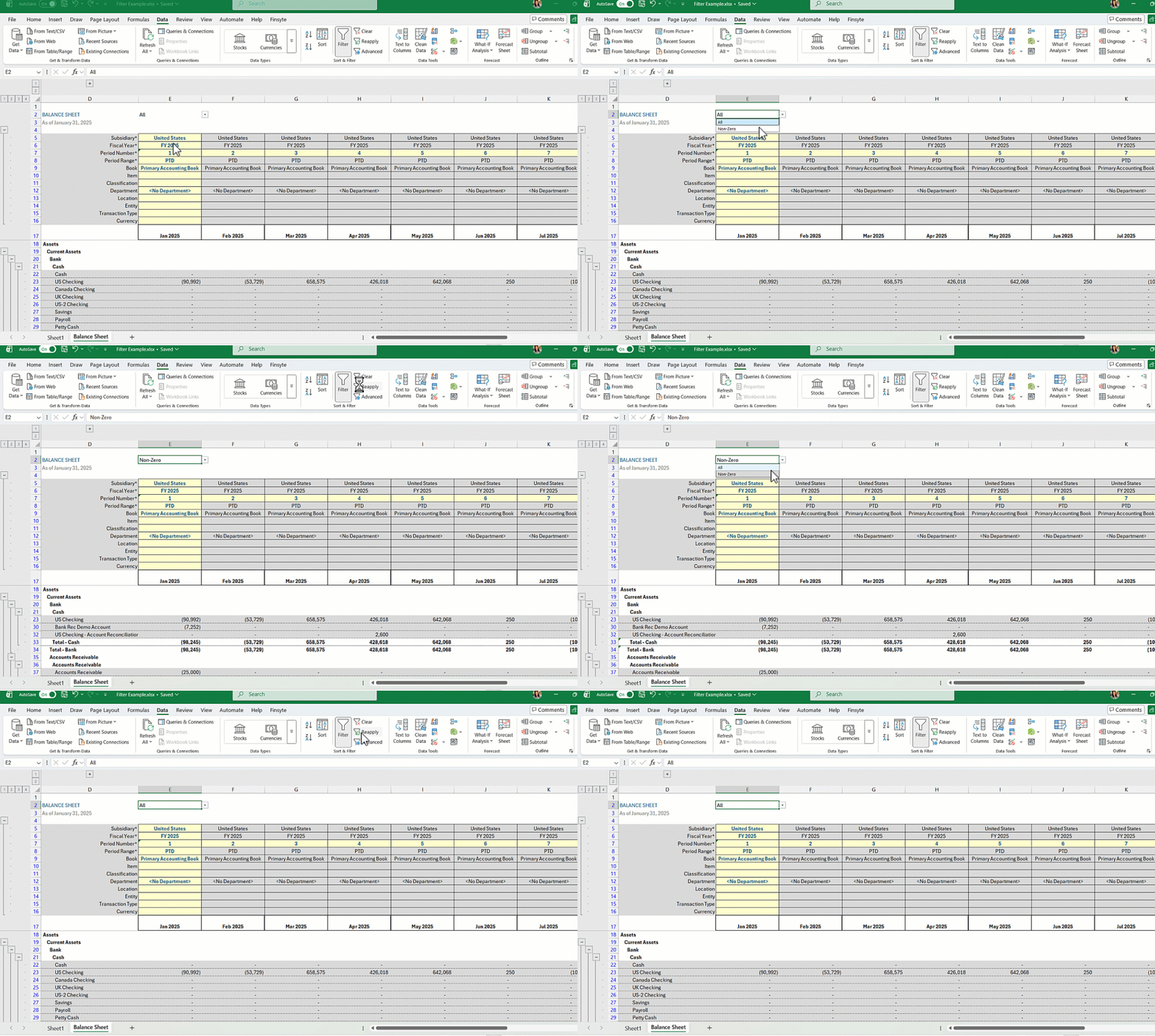
When a user changes a selection that impacts an existing applied filter, they need to utilize the Reapply button available on Excel's Data ribbon.
Option 1: When switching between All and Non-Zero, select the Reapply button to see the row values hide or show accordingly.
Option 2: When switching between All and Non-Zero, use the Excel keyboard shortcut of ALT + A + Y to reapply the filter.
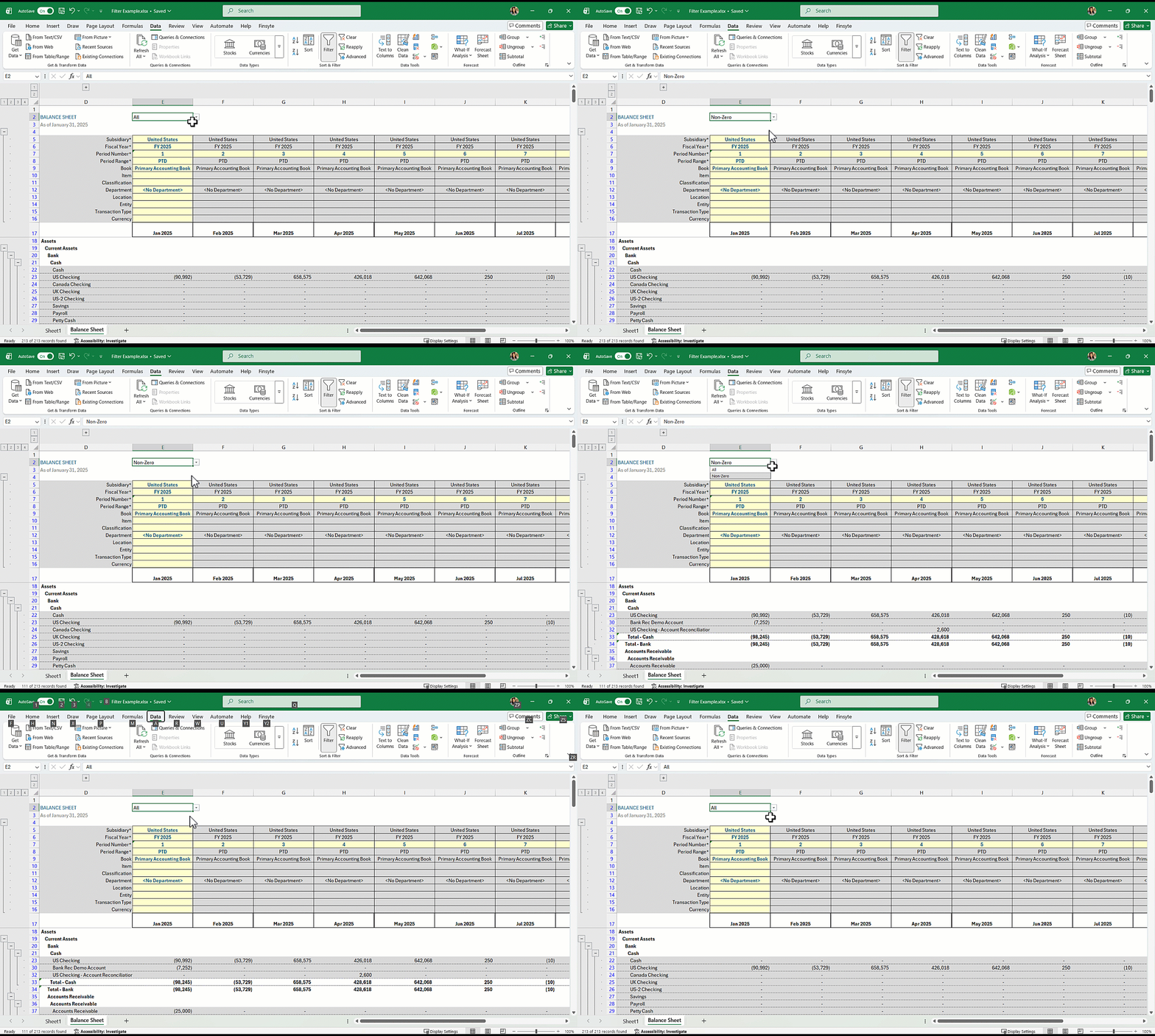
Once reapplied, the report will update instantly based on the selected option.
Result
This setup provides a clean, interactive way for users to control report visibility without altering formulas or rerunning reports. It's especially useful for financial reports where zero-value rows are common, but often unnecessary.