Manage Templates
Templates are created and edited in the Finsyte Template Portal, which opens as a pane inside Excel. This page covers opening the portal and working with the template list. Building a template is covered in Build a Template.
Open the Template Portal
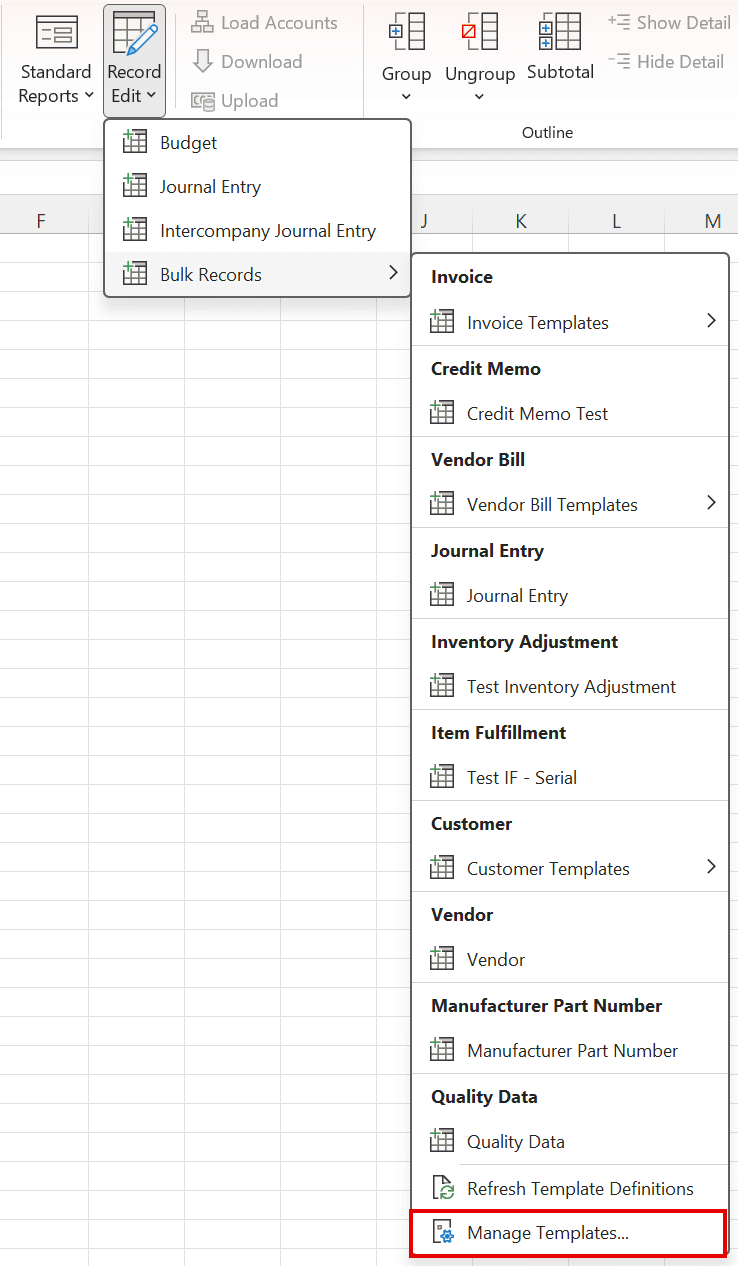
- Select Templates and Actions > Record Edit > Bulk Records > Manage Templates....
- A pane titled Manage Templates docks on the right side of Excel and signs you in automatically using your Finsyte license.
The Templates List
The Templates page lists every template you can use, grouped by record type. Custom record templates are grouped under Custom Records.
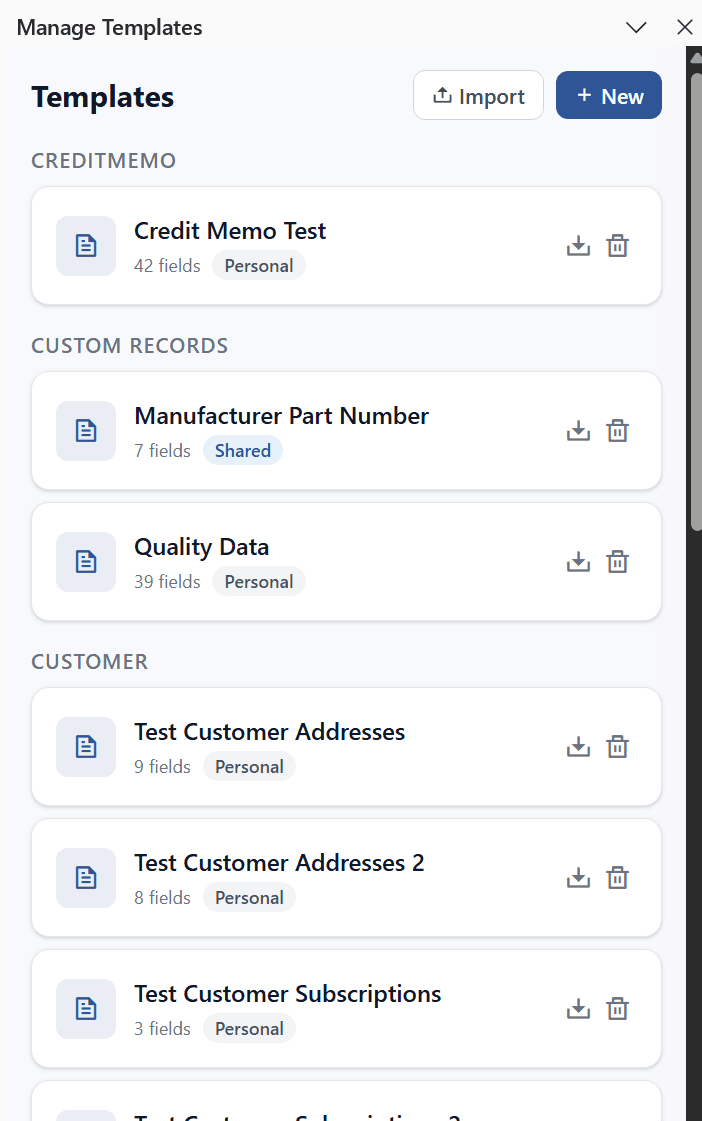
Each template card shows the template name, the number of fields it contains, and type of template:
| Badge | Who can use it | Who can edit or delete it |
|---|---|---|
| Personal | Only you | You |
| Shared | Everyone in your company | The person who created it |
At the top of the page, New starts a new template and Import loads one from a file. Each card has an Export icon and, on templates you created, a Delete icon. Select a card to edit an existing template.
Make Your Own Copy of a Shared Template
You can use a colleague's Shared template as it is, but you cannot change it. To get a version you can edit, Export the Shared template, then Import the file. The imported copy belongs to you. See Import and Export Templates.

Delete a Template
- Select the Delete icon on the template card.
- In the Delete Template dialog, confirm with Delete.

Deleting a template removes it from the Bulk Records menu. Worksheets already created from the template keep working.
Next step: Build a Template