Filters
The Filters area controls how records are selected when you download into a sheet. There are two kinds of filter.
| Kind | Where it is used |
|---|---|
| Optional filters | Become the Filter By dropdown on the sheet. The person using the sheet picks one and enters a value each time they download. |
| Default filter | Applied to every download from every sheet created with this template. Optional filter values are added in addition to the default filter. |
Note: Filters work on body fields only, due to limitations on filtering through the REST API.
Optional Filters
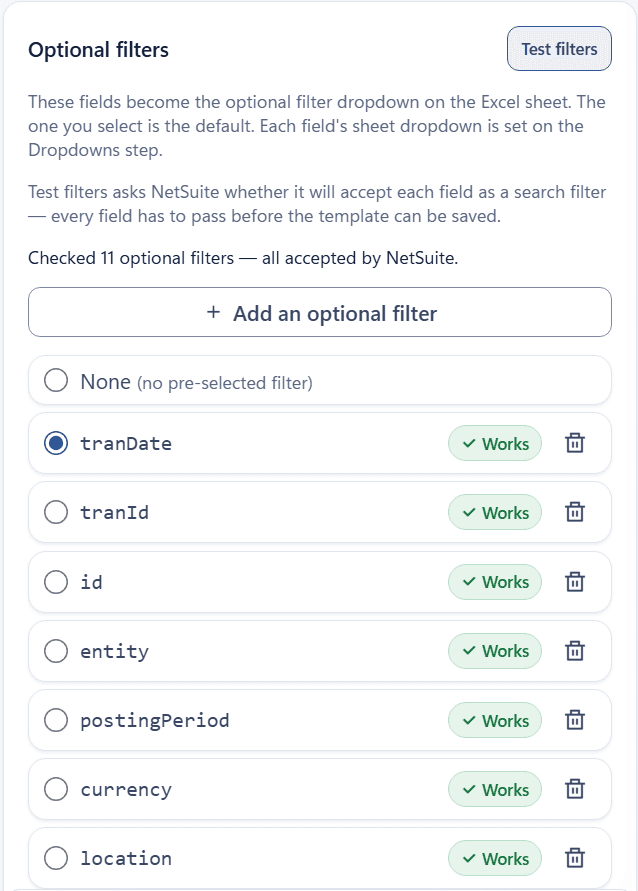
A new template starts with recommended optional filters already listed for its record type, such as tranDate, tranId, id, entity, postingPeriod, and lastModifiedDate, with tranDate preselected.
- Remove any filter you do not want with its trash icon. To add another, select Add an optional filter and pick a field; search to find it.
- Select the filter you want new sheets to start with in Filter By, or select None (no pre-selected filter).
- Select Test filters. The editor asks NetSuite whether each field can be used as a search filter and marks each one
WorksorFailed.
Remarks
- Every optional filter must pass its test before the template can be saved. If any fail when you save, the editor removes them and asks you to save again.
- Each optional filter can have its own dropdown on the sheet, set on the Dropdowns area.
- If a template has no optional filters, the sheet's Filter By list offers only
None, and downloads use the default filter alone (or return every record if there is no default filter).
Default Filter
- Select + Add default filter.
- Choose whether the group matches ALL of (AND) or ANY of (OR) its conditions.
- Select + condition and pick a body field, an operator, and a value. Operators depend on the field type and include options such as
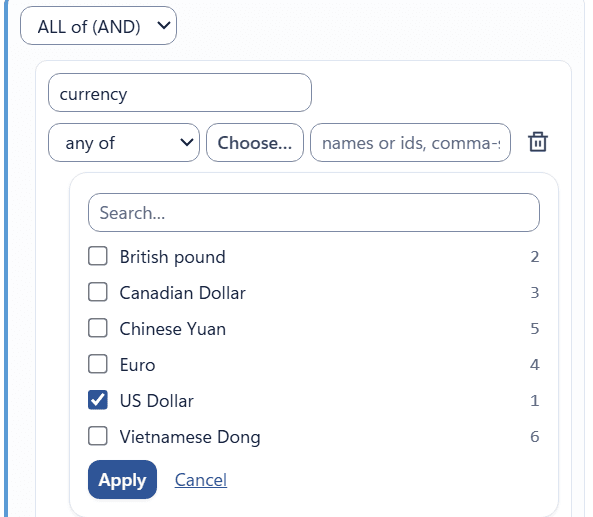
is,is not,contains,starts with,is empty,equals,greater than,between,any of,on,before, andon or after.- For fields that reference another record, select Choose… to pick records from a list. Picked records appear as chips.
- Date values use your NetSuite date format.
- Select + AND / OR group to nest another group when a condition needs both kinds of logic.
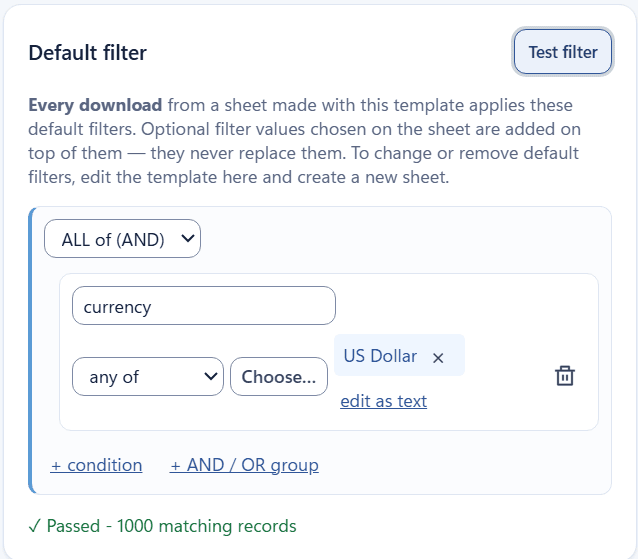
- Select Test filter. The result line reads
✓ Passed - N matching records,0 matching records., or✗followed by NetSuite's message.
Remarks
- The default filter must pass its test before the template can be saved.
- A test that finds
0 matching records.still passes, so the template can be saved, and Review and Save warnsThe default filter currently returns 0 results.Downloads from its sheets return nothing until records in NetSuite match the filter. If the conditions are wrong instead, change them, save the template, and create a new sheet. - Not every body field can be filtered on. For example, on invoices
subsidiaryfails withThe field 'subsidiary' is not available for filtering on this record type.Fields that pass as optional filters work in the default filter too. - Double quote characters in a value are matched only with the
isandis notoperators. For every other operator, such ascontains,starts with, and ranges, NetSuite has no way to escape a quote, so quotes are removed from the value before searching. The editor shows the value it will search with. - A default filter is baked into each sheet when the sheet is created. It applies to every download from that sheet. To change or remove it, edit the template and create a new sheet.
- The sheet shows a summary of the default filter beside its Filter By cell so the person downloading knows it is in effect.
Example
A template for invoices billed in US dollars might use the default filter currency any of US Dollar, with optional filters for Date and Customer. Every download is limited to US dollar invoices, and the person downloading narrows further by date range or customer.
Next step: Dropdowns