Import and Export Templates
Templates can be saved to a file and loaded from one. Use this to back up a template, to copy a template between NetSuite accounts such as sandbox and production, or to make your own editable copy of a colleague's Shared template.
Export a Template
- Open the Template Portal.
- Select the Export icon on the template's card.
- The browser downloads a JSON file named after the template.

The file contains the template's name, record type, visibility, columns, filters, default filter, dropdown settings, and custom form.
Import a Template
- Select Import at the top of the Templates page.
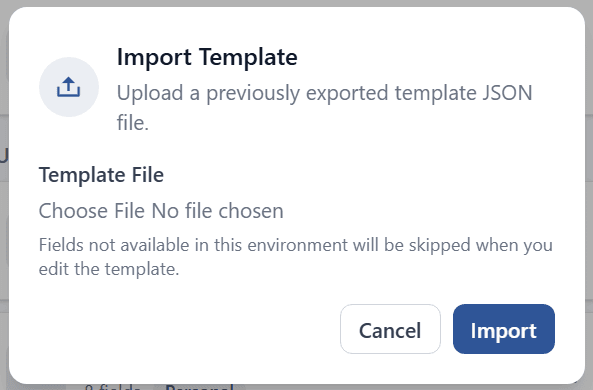
- In the Import Template dialog, choose the JSON file and select Import.
- The portal confirms with
Template "<name>" imported successfully. Edit it to validate fields against this environment.
The imported template belongs to you, so you can edit and delete it regardless of who created the original.
After Importing
Open the imported template and review it before use.
- Filter test results are reset on import, because they depend on the account. Select Test filters and Test filter on the Filters area, then save.
- Fields that do not exist in the current account are dropped when you open the template, as the dialog notes:
Fields not available in this environment will be skipped when you edit the template. - Dropdown values fetched from NetSuite are refreshed for the current account when the template is next used.
Messages
| Message | Meaning |
|---|---|
Please select a file to import. | No file was chosen. |
Invalid template file format. | The file is not a template export. |
Template file is missing required fields. | The file is incomplete or was edited by hand. Export it again from the source account. |
Next step: Open a Bulk Record Sheet