Getting Started with Bulk Records
Bulk Record Templates live in the Finsyte ribbon under Templates and Actions. This page shows where to find them and what each control does.
The Bulk Records Menu
Select Templates and Actions > Record Edit > Bulk Records. The menu lists every template available to you, grouped by record type.
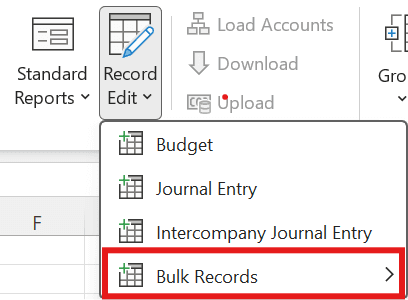
The menu contains:
- A list of templates available to you, sorted by record type.
- Refresh Template Definitions: reloads templates and their dropdown values to keep your data up to date.
- Manage Templates: opens the Template Portal inside Excel, where templates are created and edited. See Manage Templates.
Buttons on a Bulk Record Sheet
When a bulk record sheet is the active worksheet, the Templates and Actions group shows three buttons: Download, Create or Add/Edit, and Validate.
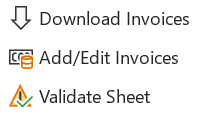
| Button | What it does |
|---|---|
| Download | Pulls matching records from NetSuite into the sheet based on the applied filters. See Download Records. |
| Create or Add/Edit | Sends the sheet to NetSuite, updating existing records with changes and creating new records for additions. See Upload Records. |
| Validate Sheet | Checks the sheet for problems that might stop an upload, and lists how many records will be updated or created. See Validate Sheet. |
Related: Template Dropdowns
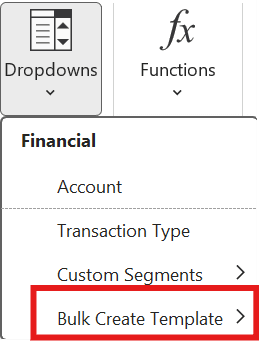
Data Retrieval > Dropdowns > Bulk Create Template lists the additional dropdowns that can be added to the current active bulk record sheet. See Fill in the Sheet.
Next step: Manage Templates