Specifying Multiple Values in Finsyte Functions
Many Finsyte functions accept more than one value for a single argument — for example, multiple account numbers, classifications, or locations. Rather than writing a separate formula for each value, you can pass them all in at once using either the ^ character or an Excel named range.
For the full list of filter characters (wildcards, ranges, etc.), see Function Input Filter Syntax.
Option 1: Inline with the ^ Character
The ^ character joins multiple values into a single string argument. This is the quickest option for one-off formulas.
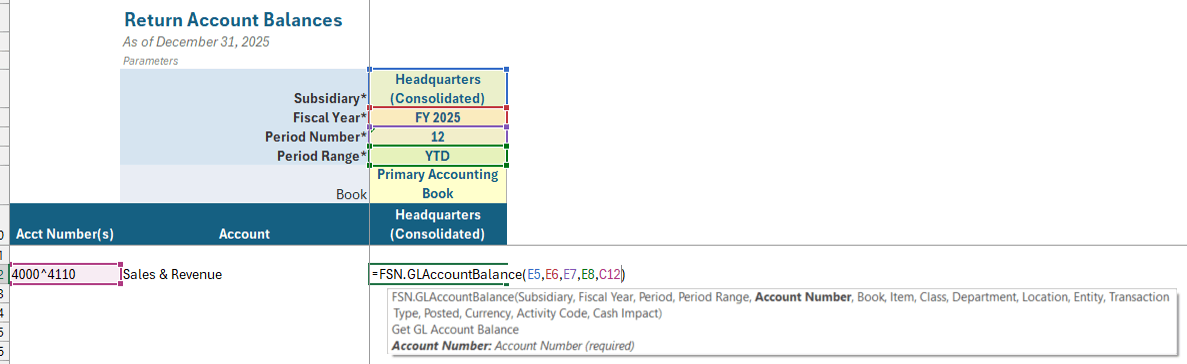
In this example, the function returns the combined balance for accounts 4000 and 4110.
You can combine ^ with the other filter characters as needed:
4100^4200^4300— three specific accounts4100-4200^5000— a range plus an additional account4*^5000— all accounts starting with 4, plus account 5000
Option 2: Reference an Excel Named Range
When the same list of values is used in multiple formulas — or when the list is long enough that an inline string becomes hard to read — define a named range in Excel and reference it by name.
Step 1: Create the Named Range
- Enter the values you want to group into a column (or row) on the worksheet, with a header label in the first cell (e.g.,
RevenueAccounts). - Select the header cell and the values beneath it.
- From the Formulas ribbon, select Defined Names > Create from Selection, or use the keyboard shortcut Ctrl + Shift + F3.
- In the Create Names from Selection dialog, check Top row (or the appropriate option for your header location).
- Select OK.
The selected cells are now available as a workbook-level named range, using the header label as the name.
Step 2: Reference the Named Range in a Finsyte Function
Pass the named range as the argument value:
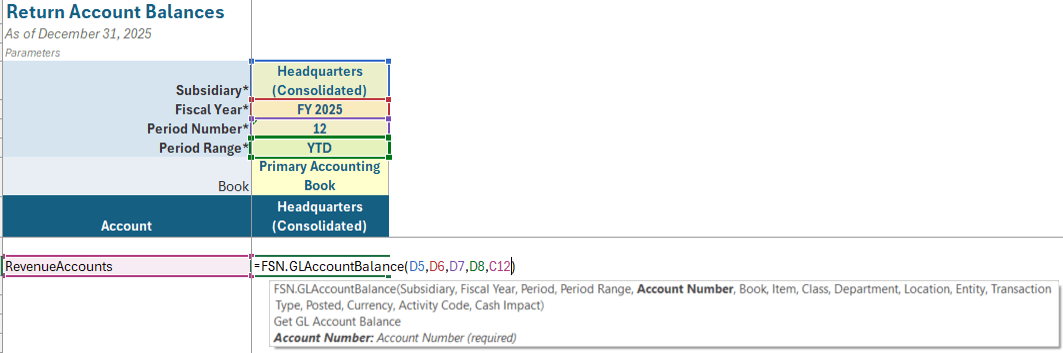
The function evaluates against every value in the range, just as if you had concatenated them with ^.
Important: Named ranges must not conflict with any name that Finsyte could otherwise resolve. This includes names Finsyte uses internally, the names of NetSuite segments referenced by the add-in, and any individual value within the segment you're querying. For example, if you have a department named
Sales, do not create a named range calledSalesand pass it as the department argument — Finsyte will always resolve the segment value rather than your named range. Choose distinctive names (e.g.,RevenueAccountsrather thanAccounts, orSalesDepartmentsrather thanSales) to avoid these conflicts.
When to Use Each Approach
| Scenario | Recommended Approach |
|---|---|
| One-off formula with two or three values | Inline ^ |
| Same list reused across many formulas | Named range |
| Long list of values | Named range |
| Mixing values with wildcards or ranges | Inline ^ (combined with -, *, ?) |