Bulk Record Templates
Bulk Record Templates let you create and update NetSuite records of almost any type directly from Excel. You design a template in the Finsyte Template Portal, choosing the record type and the columns you want, and Finsyte turns it into a worksheet. From that sheet you can download existing records, create new ones, validate, and upload everything back to NetSuite in bulk.
Bulk Record Templates put you in charge of the record type and the layout. Use them for work like creating a batch of invoices, updating terms on a list of customers, or loading items from a spreadsheet.
The Workflow
Follow these pages in order for detailed instructions on using bulk records:
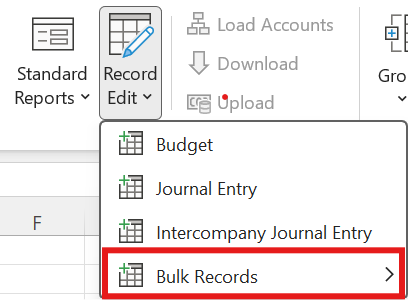
- Getting Started with Bulk Records: where the feature lives in the Finsyte ribbon and what each button does.
- Manage Templates: open the Template Portal and understand the template list.
- Build a Template: choose a record type and configure Basics, Columns, Filters, Dropdowns, then Review and Save.
- Keep Templates Up to Date: what happens when a template changes.
- Import and Export Templates: back up templates or copy them between accounts.
- Open a Bulk Record Template: insert a worksheet from your template and learn its layout.
- Fill in the Sheet: what to type in each column and how multi-line records work.
- Upload Files: upload images, PDFs, receipts, and other files into NetSuite file fields.
- Download Records: pull existing records into the sheet with a filter.
- Validate Sheet: check for problems before anything is sent.
- Upload Records: create or update the records in NetSuite and read the results.
- Upload Errors: find and fix anything NetSuite rejected.
- Edit Existing Records: the download, change, and upload cycle.
- Match Records by External ID: create and update records by another system's IDs in column A.
- Delete Records: mark records Delete and delete them from NetSuite when you upload.
- Work With Lines: Line IDs, and step-by-step instructions to create records and add, copy, replace, and delete lines.
- Inventory Detail: lot numbers, serial numbers, bins, and statuses, and when to add the Inventory Assignment columns.
- Create Records From Another Transaction: fulfillments, receipts, bills, invoices, work order records, and applications created from a source with Created From.
- Example: Invoices Start to Finish: one complete walkthrough.
Settings for the feature are in the Bulk Records pane of the Preferences dialog.
What You Need
The Finsyte SuiteApp must be deployed in your NetSuite account. See SuiteApp Deploy for how to check the deployment and deploy it from Preferences.
Record Types You Can Use
Templates can be built for transactions (sales, purchasing, financial, and inventory), entities such as customers, vendors, and employees, items, lists and setup records such as accounts and departments, CRM records, revenue and billing records, and your account's own custom records. The Basics step of template creation shows how to find a record type.