Dropdowns
The Dropdowns area sets the dropdown list, if any, on every column and optional filter that can carry one. Dropdowns make data entry faster and keep values valid, because a value picked from a list always matches a record in NetSuite.
The area lists one card per field. A chip shows whether the field is a body column (Column · body), a line column (Column · line), an optional filter (Filter), or both (for example Column · body + Filter).
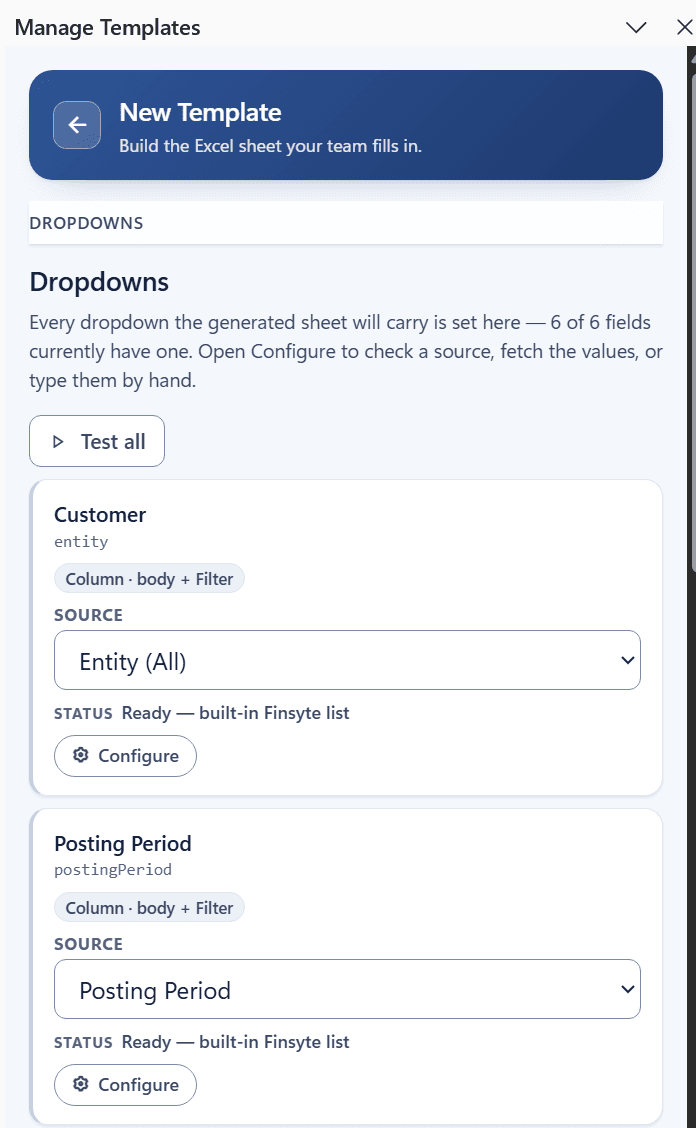
Choose a Source
Set the Source for each field.
| Source | Use it when |
|---|---|
| No dropdown | The person filling in the sheet types the value. |
| Finsyte list | The field matches one of Finsyte's built-in lists, such as Subsidiary, Account, Item, Class, Department, Location, Currency, Customer, Vendor, Employee, Entity, or Posting Period. Posting Period fields, and custom fields that point at accounting periods, use the Posting Period list by default. These lists are already maintained by list refresh. Standard fields get the matching Finsyte list automatically when the Auto-include dropdown lists for standard fields preference is on. |
| From NetSuite (fetch a table) | The field references any other list record, such as Terms or Payment Method. Enter the Source list name, for example term, then select Fetch from NetSuite. |
| Fixed code list | NetSuite defines a fixed set of codes for the field. The list is built in and needs no fetching. |
| Manual list (type name/id pairs) | You want to limit the choices to a list you type yourself. See Set Up Your Own List. |
Configure a Fetched List
Select Configure on a field to open its settings, and Hide to close them.
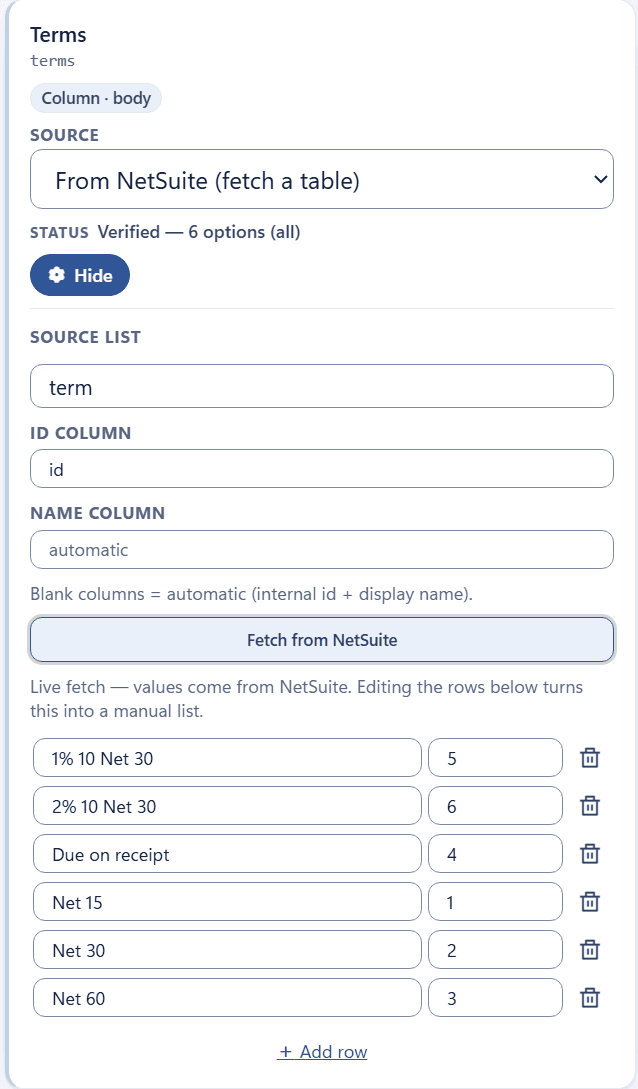
- Source list, Id column, and Name column identify the NetSuite table to read. Leave the columns blank to use the internal ID and display name.
- Detect from NetSuite looks up the source for a custom field and fills in Source list for you. If it comes back empty, type the source list name.
- Fetch from NetSuite loads the values. Fetches return the first 1,000 options. If the list is longer, the status line offers
Fetch all N instead. - The fetched rows can be edited, deleted, or added to. Any change turns the list into a manual list. Select Fetch from NetSuite again to return to NetSuite's values.
Set Up Your Own List
A manual list holds exactly the choices you type, each as a name and an internal ID. Use it to offer only some of a field's values, such as the departments your team posts to, or to give a list field a dropdown when no other source fits.
- On the field's card, set Source to Manual list (type name/id pairs).
- Select Configure. The panel reads
Manual list — these rows are stored in the template. - Select Add row once for each choice, and fill in the row:
- Name: the text the dropdown shows on the sheet, for example
Net 30. - Internal id: NetSuite's internal ID for that value, for example
2.
- Name: the text the dropdown shows on the sheet, for example
- To remove a choice, select the trash icon on its row.
- Select Hide. The card's status reads
Manual — N options.
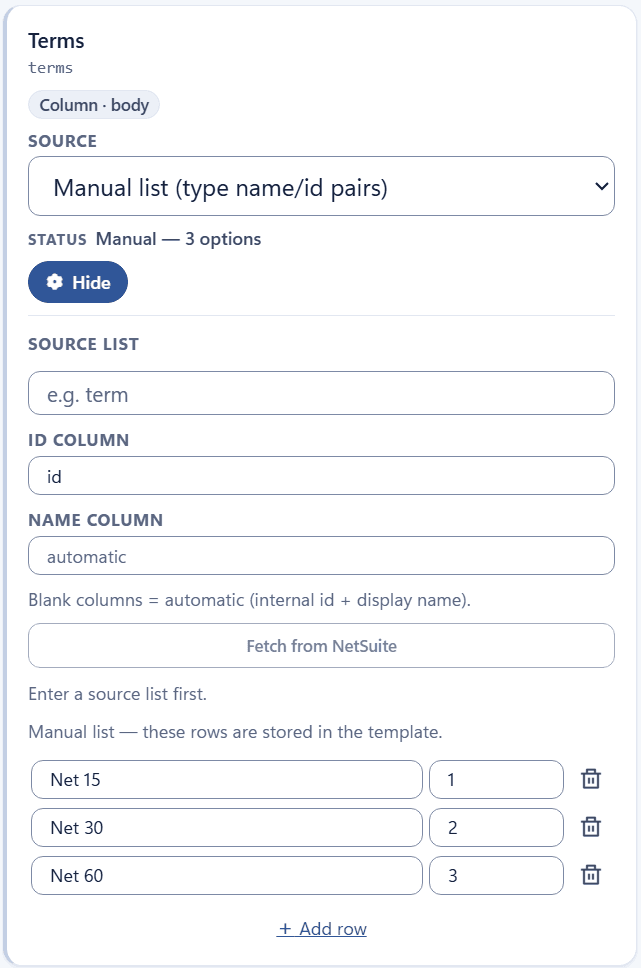
Tip: To start from NetSuite's values instead of typing them, set the source to From NetSuite (fetch a table), select Fetch from NetSuite, and delete the rows you don't want. The list becomes a manual list.
Remarks
- On the sheet, the dropdown lists the names. On upload, each name is sent to NetSuite as its internal ID, and a download shows the name again.
- NetSuite shows a record's internal ID in its URL (
id=…), and in lists when Show Internal IDs is turned on in your NetSuite preferences. - A manual list is stored in the template and is not refreshed from NetSuite. Update its rows when the values in NetSuite change.
- Manual lists are available for columns. If the field is also an optional filter, its Filter By dropdown has no list.
- Fields that NetSuite limits to a fixed set of codes offer Fixed code list instead. Configure it and delete the codes you don't want offered.
Test All
Test all fetches every table-based list at once and reports Test all finished: X verified, Y failed. Lists you edited by hand are left as they are.
Remarks
- Status lines describe each list:
Ready — built-in Finsyte list,Verified — 1,204 options (first 1,000),Fixed list — 22 codes,Manual — 8 options,Not fetched, orSource needed. - Saving is blocked while a list has no options. The message names the field and suggests adding rows, fetching from NetSuite, or setting the source to No dropdown.
Next step: Review and Save