Download Records
Download pulls existing NetSuite records into a bulk record sheet. Use it to review records, to change them and upload the changes, or to copy existing records as the starting point for new ones.
Set a Filter
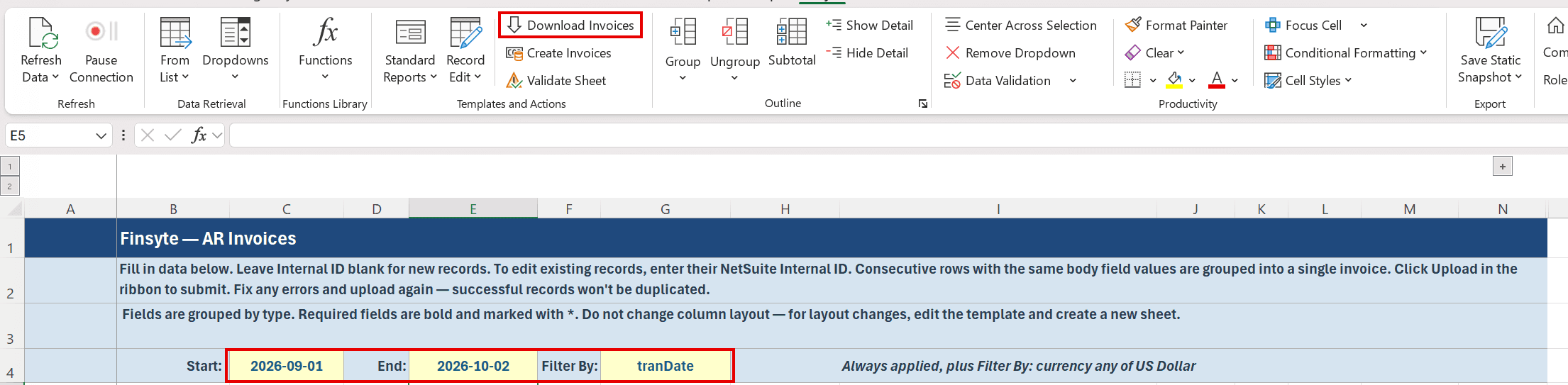
Row 4 of the sheet holds the filter cells.
- Choose a field in Filter By. The list offers
Noneplus the optional filters defined in the template. - Enter a value in Start. For a date or number range, enter the end of the range in End. When the filter field has a list, Start offers a dropdown of its values.
- The Download button becomes available when the combination is valid.
| Filter field type | Start only | Start and End |
|---|---|---|
| Date or Date/Time | Records on that date. | Records from Start through End, inclusive. |
| Number | Records equal to the value. | Records from Start through End, inclusive. |
| List | Records with that value. Pick it from the Start dropdown. | Not allowed. |
| Text | Records whose value matches exactly. | Not allowed. |
| Checkbox | true or false. | Not allowed. |
Remarks
- Choosing
Nonedownloads every record the template's default filter allows, or every record of the type when there is no default filter. Start and End must be blank when Filter By isNone. - When Filter By names a field, the button stays greyed until you enter a value in Start or End. To download without a condition, switch Filter By back to
None. - The template's default filter is always applied in addition to whatever you choose. Its summary is shown at the end of row 4. To change or remove it, edit the template in the Template Portal and create a new sheet.
Download
Select Download in the Templates and Actions group.
Warning: Download clears every data row on the sheet before writing the results. There is no confirmation. Copy anything you want to keep to another sheet first.
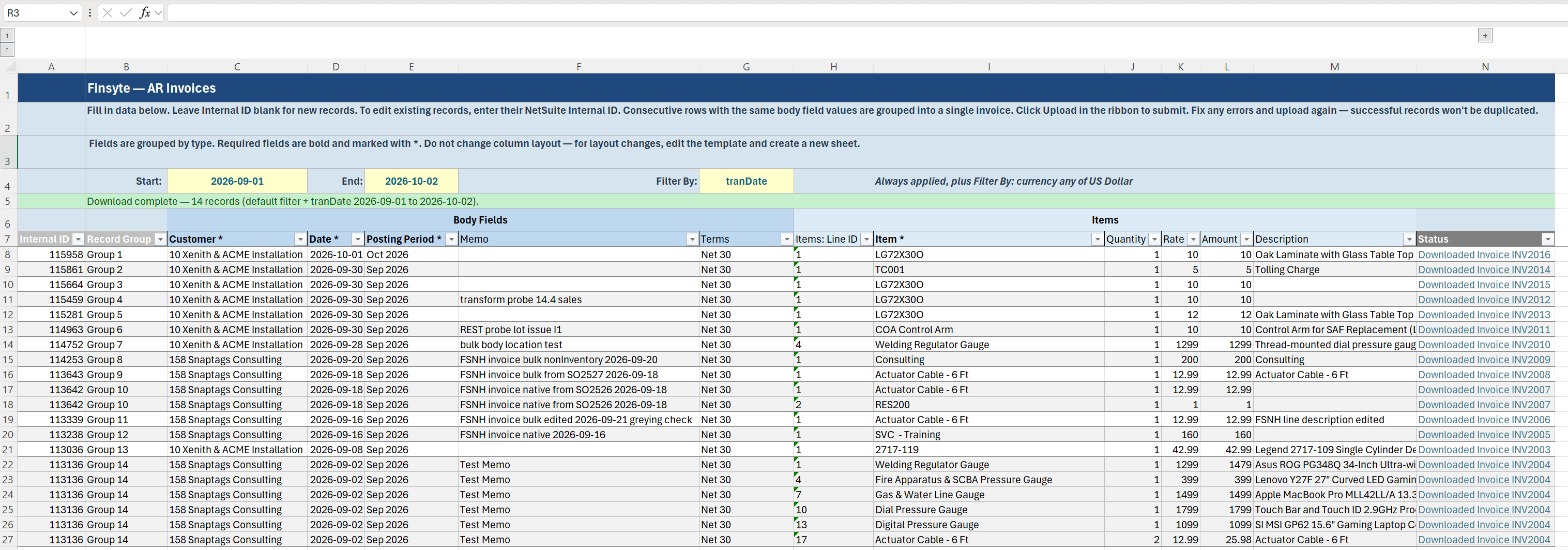
Rows appear as NetSuite returns them. The row 5 banner reads Download in progress — X of Y records (<filter>)… while it runs, then Download complete — N records (<filter>).
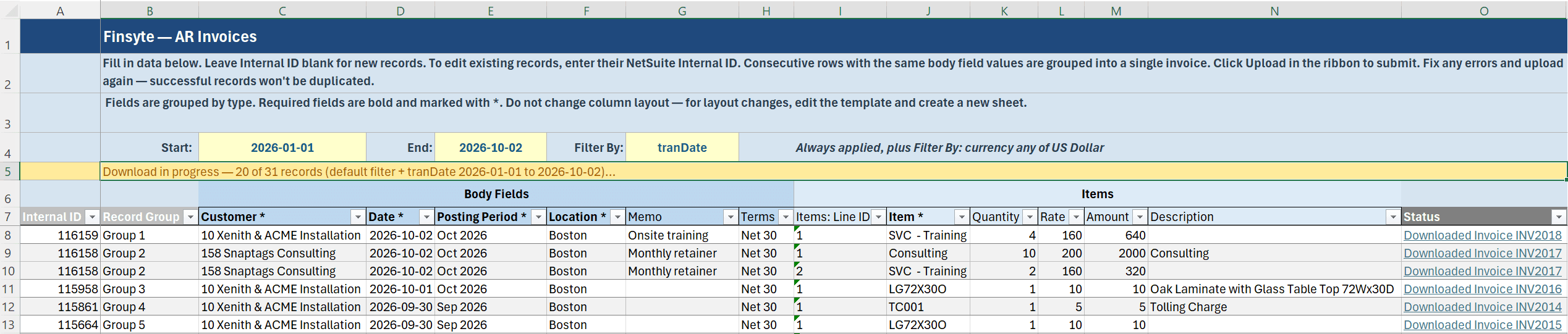
Each downloaded record has...
- Its Internal ID on every one of its rows.
Group 1,Group 2, and so on in Record Group, when the template has that column.- One row per line, with body fields repeated on each row. Lines of different sublists share rows side by side.
- Each line's ID in its sublist's Line ID column, such as Items: Line ID. See Work With Lines.
- On templates with Inventory Assignment columns, one row per assignment row, each with its Inventory Assignment: ID. See Inventory Detail.
- A Status link reading
Downloaded <Record Type> <number>that opens the record in NetSuite. - Alternating shading so each record's rows are easy to tell apart.
Cancel a Download
Select Cancel in the status dialog. Records already received are kept, and the banner reads Download cancelled — kept X of Y records (<filter>).
Messages
| Banner | Meaning |
|---|---|
Download — no <Record Type> records found (<filter>). | Nothing matched. Check the filter and the template's default filter. |
Download failed — Filter By '<field>' takes a single value — enter it in Start and leave End blank. | The field does not support a range. Clear End. |
Download failed — No match found for '<value>' on '<field>'. | The Start value is not on the field's list. Pick it from the dropdown. |
Download failed — The field '<field>' is not available for filtering on this record type. | NetSuite no longer accepts the field as a filter. Edit the template's filters. |
Download — this sheet is from an older add-in version. Create a new sheet from the template. | The sheet predates the current sheet format and cannot be upgraded. |
Note: Large downloads take time. NetSuite returns records in pages, and Finsyte fetches them in parallel up to the Max Outstanding Requests setting in Advanced preferences.
Next step: Validate Sheet