Help
The Help section makes it easy to diagnose potential encumbrances to successful use of the tool. It also makes it easy to check on information about your Finsyte License.
Diagnostics
Diagnostics contains the option to "Show Log".
Show Log
This option will pull up a log file that details the processes that have been performed on the current session of Excel utilizing Finsyte functionality. This is a great tool to utilize when working with the Finsyte support team to help diagnose any problem that may arise. The log file makes it easy to save as a txt file for sharing.
Warning: If an error has occurred in Finsyte, the diagnostics section will display an exclamation mark.

Help Options
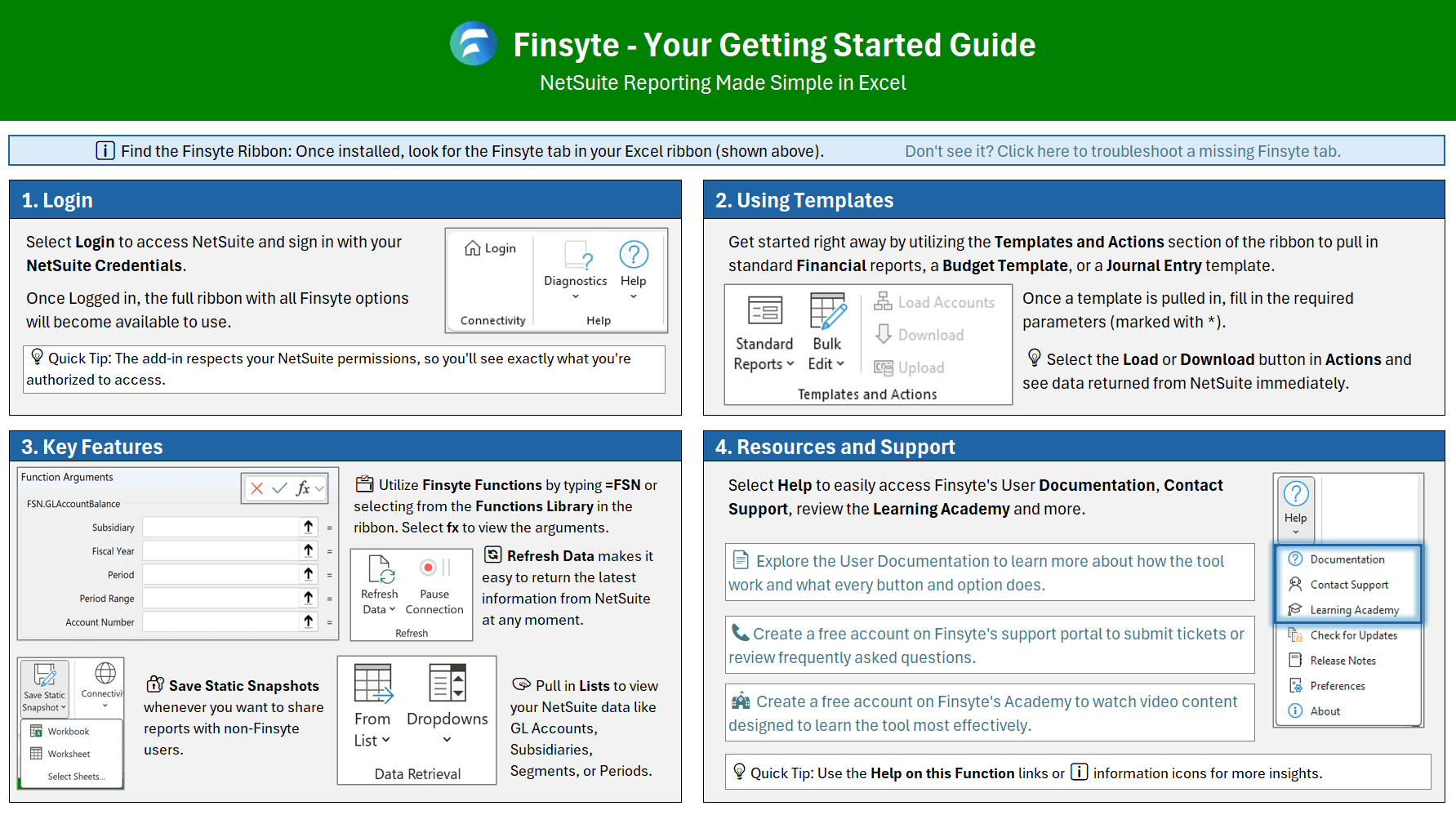
Help contains information about the Finsyte tool and about a user's Finsyte license.
Documentation
Selecting Documentation will take users directly to this Finsyte user documentation. In addition to being able to select the general documentation link here, our functions include links in the bottom left that say Help on this function that will take you directly to specific function pages of our documentation.

Getting Started
Selecting Getting Started opens an in-Excel guide covering setup and key workflows for the Finsyte Add-In.
Contact Support
Selecting Contact Support (opens in new tab) will take a user directly to our Finsyte Support Portal. This portal does require a login. If you have not made an account yet, the accounts are free to make (Windows Authentication or Standard Username/Password available).
After an account is made, users can submit tickets to the Finsyte support team, access knowledge base articles about important/relevant information, or visit the community page to make public posts.
This is the best and primary way to connect with Finsyte's development team if any assistance is required.
Preferences
This dialog will allow users to select and control certain elements of their Finsyte License type. Review Preferences.
Check for Updates
This will review the existing Finsyte License version for a user and determine if they are up to date or if there is a newer version of the add-in available. As Finsyte is set to Automatically prompt a user to update when new releases become available, this option should not be needed often.
The available message dialogs when this option is selected are visible below.
-
There is an update. If a user sees this message. Selecting OK will prompt the installer to pop up. Once that happens, a user will need to close Excel, saving if needed, and select to install the update. Once installed, opening Excel again will return the updated version of Finsyte.

-
You are up to date.

About
The user will receive a message box like the one below that contains the specific Finsyte version as well as information about the release schedule they have selected.
