Validate Sheet
Validate Sheet checks a bulk record sheet for problems that would cause an upload to fail, without sending anything to NetSuite. Run it after filling in or changing rows and before you upload.
Select Validate Sheet in the Templates and Actions group while the bulk record sheet is active. Hidden rows are unhidden first so every row is checked.

What It Checks
- Required columns that are blank.
- Values in list columns that do not match anything on the list.
- Numbers, whole numbers, checkboxes, dates, and date/times that cannot be read.
- Internal IDs that are not whole numbers, or that appear in more than one place on the sheet.
- Body field values that differ between rows of the same record.
- Posting periods that are closed or locked, and dates that fall outside their posting period.
- Debits and credits on journal entry record types, including whether each entry balances.
- Line ID values on rows of a new record (no Internal ID), usually left over from copied rows. See Work With Lines.
- Line cells that differ between the rows of one line, on sheets with Inventory Assignment columns.
Reading the Results
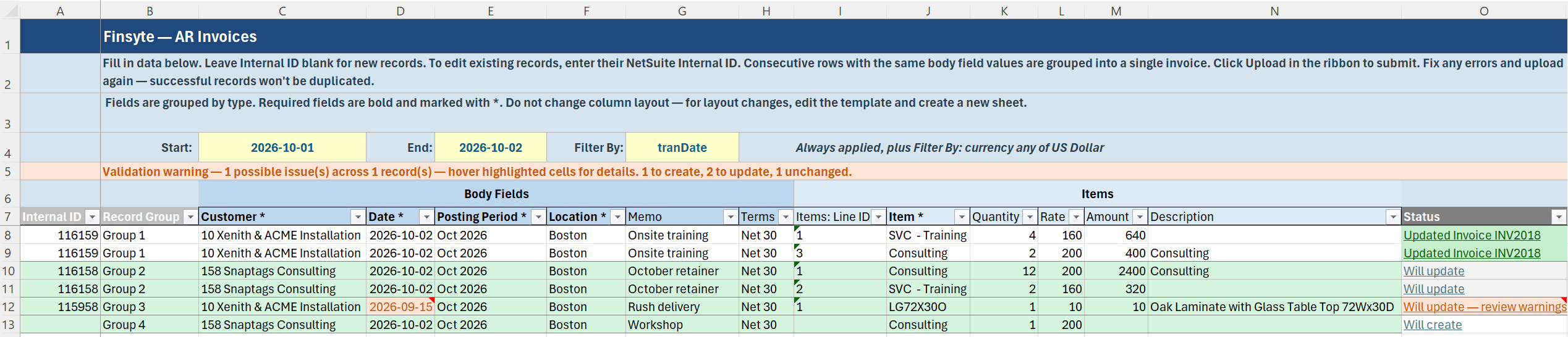
- Rows that an upload would send are shaded green.
- A cell with a problem is shaded orange. Hover over it to read the message.
- The Status column shows what an upload would do with each record:
Will create,Will update,Will create — review warnings,Will update — review warnings, orWarning: review before upload. For existing records the status is a link to the record in NetSuite. - The row 5 banner summarizes the run, for example
Validation passed — no issues found. 3 to create, 2 to update, 5 unchanged.orValidation warning — 7 possible issue(s) across 3 record(s) — hover highlighted cells for details.

Common messages...
| Message | What to do |
|---|---|
<Field> is required. | Enter a value. |
'<value>' was not found in the <List> list. Check the value or refresh list data. | Pick the value from the dropdown, or refresh list data if the record is new in NetSuite. |
'<value>' is not a recognized date. | Enter the date in your NetSuite date format or as yyyy-mm-dd. |
'<value>' must be TRUE or FALSE. | Enter true or false. |
<Field> differs from the first row of this record; the first row's value ('<value>') will be used. | Make the body field identical on every row of the record. |
Internal ID '<id>' appears in N blocks — each upload overwrites the previous one. | Combine the rows into one record or remove the duplicate. |
Posting Period '<name>' is closed | Choose an open period. |
Date is outside Posting Period '<name>' (<range>) | Change the date or the period so they agree. |
Record is out of balance: debits <amount> do not equal credits <amount>. | Correct the amounts. |
<Sublist>: Line ID '<id>' names a line of an existing record, but this record has no Internal ID — the line will be created new. To edit that record instead, fill in its Internal ID. | To create a new record, leave the Line ID as it is. To edit the existing record, fill in its Internal ID. |
<Field> differs between rows of line <id> — the first row's value is used. | Make the line's cells match, or leave them blank on every row but the line's first. |
Remarks
- Validation results are warnings. They do not block an upload, but a record with a warning will usually be rejected by NetSuite.
- A sublist's required columns are checked only on rows that use that sublist. A row that holds only an expense line is not flagged for a blank Item.
- Fixing a cell does not clear its shading. Validate again to confirm.
- Rows already in NetSuite that have not changed are reported as unchanged and will be skipped by the upload.
- One Undo (Ctrl+Z) removes the shading, the Status text, and the banner.
Next step: Upload Records