Drill Down on Functions
Right clicking on certain functions will show a Drill Down option at the bottom of the list. This function makes it easy to see detailed information by segment, subsidiary, period, or transaction lines.
The functions that have Drill Down available include...
- GLAccountBalance
- GLAccountDebitBalance
- GLAccountCreditBalance
- GLAccountSummaryBalance
- GLItemQuantity
- StatAccountAmount
Selecting any Drill Down option will result in a new Excel Worksheet being opened in the current workbook that contains the segregated information just within the bounds of the parameters that were filled in for your selected-upon cell's function.
Note: For the Period Drill Down option, Prior Year's Balance will display on the drill down results for Balance Sheet accounts set to YTD. If an account is set to ITD, all periods will be returned as rows back to inception.
Drill Down Results
When a drill down worksheet opens, the top of the sheet displays all of the arguments used in the source function — such as account, subsidiary, period, and any other parameters — so you always have full context for the data you are viewing.
A Return to source link also appears at the top of the sheet. Clicking it will bring you back to the original worksheet and cell you drilled from.

Example
Let's say I'm looking at my GL Account Balance total for my Revenue (4110) account under the consolidated subsidiary. I need to review this account total by Subsidiary.
- Right click on the amount (cell)
- Select Drill Down > Subsidiary
- View new worksheet created called "Subsidiary Drilldown"

Let's say, looking at this broken out view of the total Revenue balance for 2025, I want to further investigate the United States Subsidiary this time by location.
- Right click on the amount for the United States Subsidiary
- Select Drill Down > Location
- View the new worksheet created called "Location Drilldown"

Now that I have the United States Subsidiary for the Revenue Account broken out by location, I want to view the individual transactions that make up Denver.
- Right click on the amount for Denver
- Select Drill Down > Transaction Lines
- View the new worksheet created called "Transaction Lines"

- Some columns not visible in screenshot.
Note: At the lowest level of Drill Down, Transaction Lines, the user will be able to click the links to view individual transactions directly inside of NetSuite, making this an effective way to troubleshoot any amount issues that may arise.
Drill Down on Summary Accounts
Drill Down is available on cells whose function references a summary account.
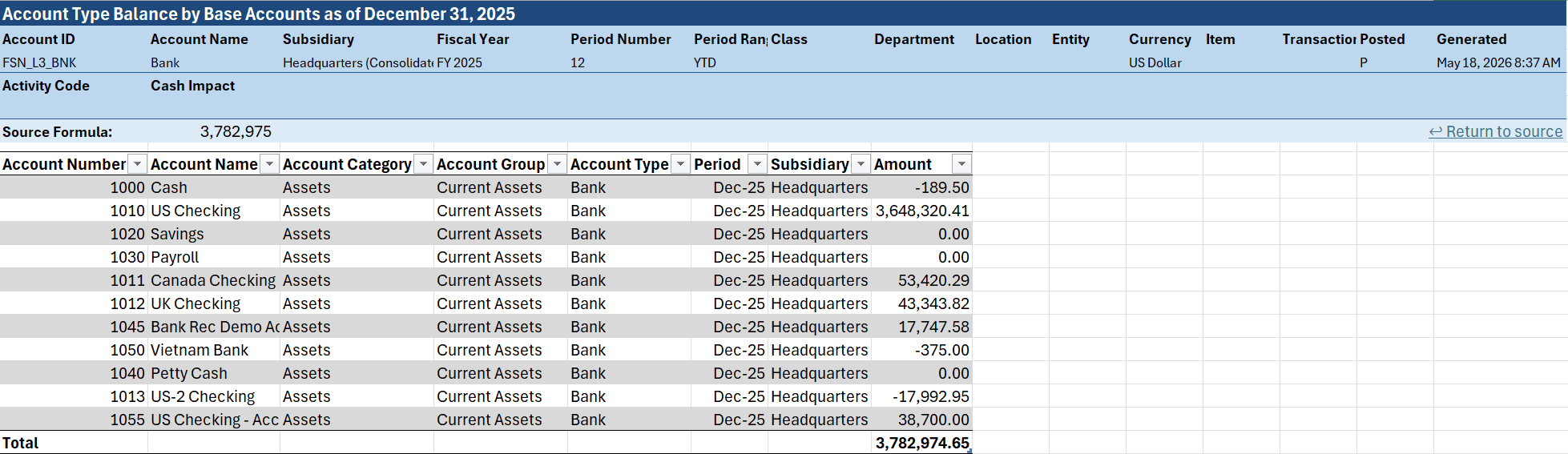
Right click a cell whose function uses a summary account, for example "FSN_L3_BNK", and choose any segment as usual. The breakdown spans every underlying account contained in the rollup, scoped to the parameters in the source function.
On a summary-account cell, the Drill Down menu also includes a Base Accounts option. It expands the rollup into one row per underlying account.
Multi-Cell (Merged) Drill Down
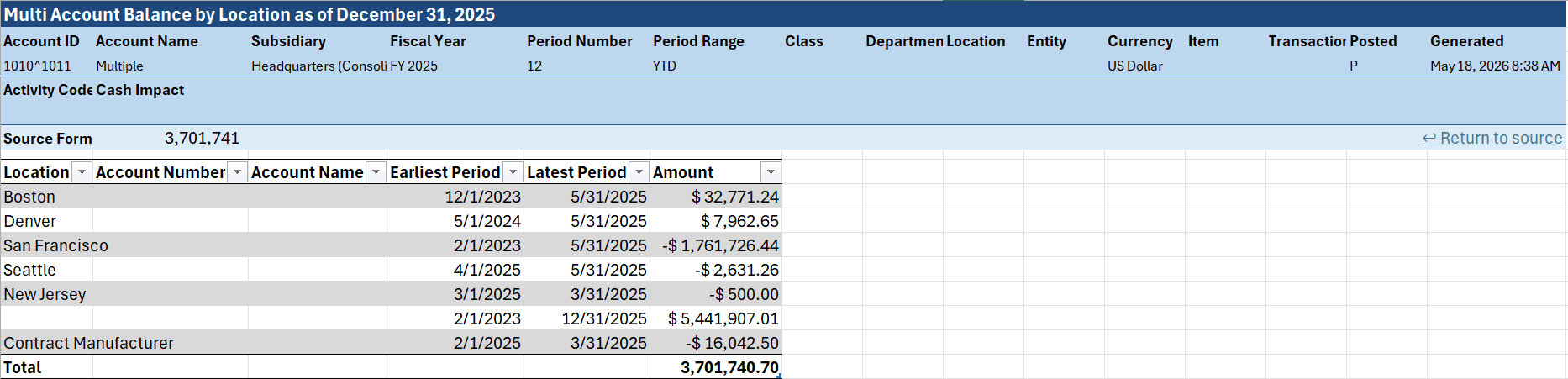
Multiple cells can be combined into a single drill down. Select the cells you wish to include in the drill down, then right click and pick a drill down segment as usual. Finsyte merges the selected cells into one combined drill down across every distinct account in the selection.
For a selection to merge, all of the following must be true:
- Every selected cell with a Finsyte function uses the same function (for example, all GL Account Balance).
- Every parameter other than the account matches across the selected cells.
Note: Advanced Options includes a Combined Drilldown Limit setting (default 200). If a selection contains more Finsyte formulas than this limit, Drill Down will not be available.