Keep Templates Up to Date
Excel keeps a local copy of your templates and their dropdown values so that creating a sheet is fast and works even without a connection. This page explains when that copy refreshes and what happens to existing sheets when a template changes.
When Templates Refresh
Templates load once per Excel session the first time you open the Bulk Records menu. After that they refresh when...
- You save or delete a template in the Template Portal. This refreshes templates only on the computer where the change was made.
- You select Bulk Records > Refresh Template Definitions.
- You select Refresh Templates in the Bulk Records preferences pane.
- You refresh list data with Refresh > Entire Workbook or Refresh > List Data, while the Refresh templates when refreshing list data preference is on (it is on by default).
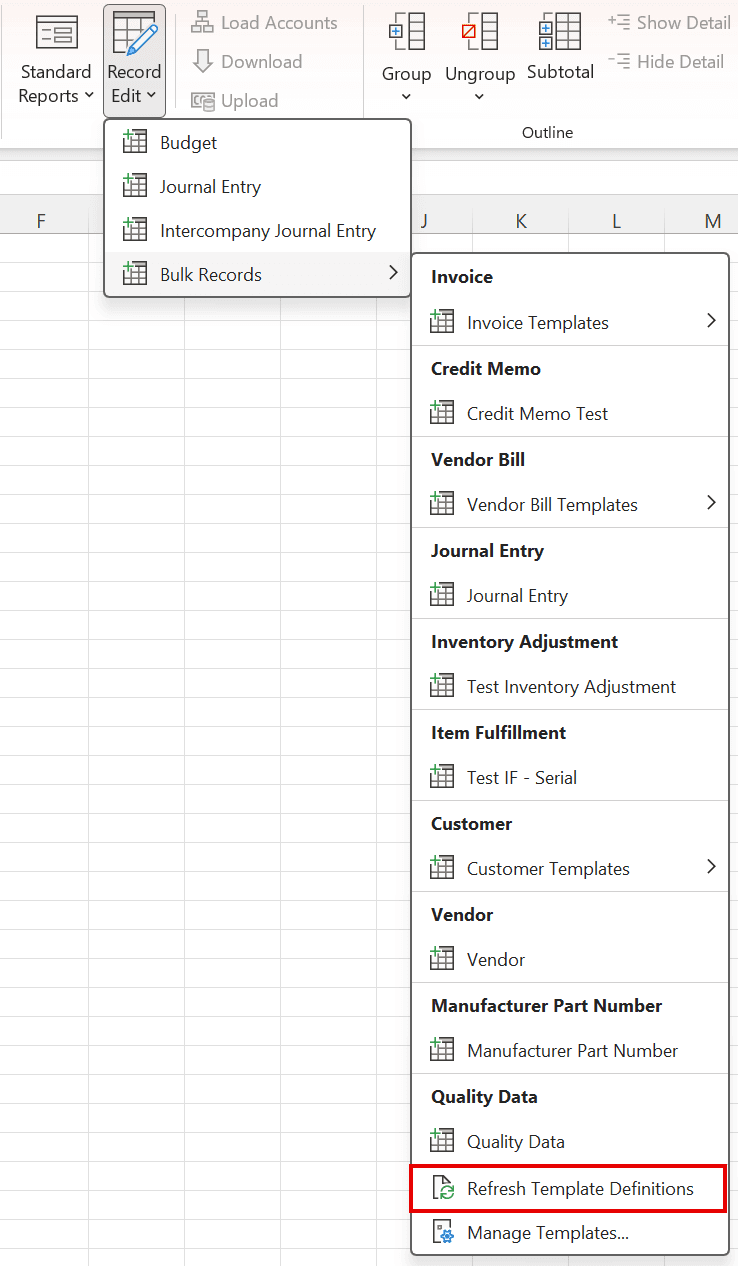
Refresh Template Definitions pulls the latest templates for your company, fetches every template's dropdown values from NetSuite again, and updates the dropdown lists on every open bulk record sheet. While it runs, Excel's status bar reads Refreshing templates and the ribbon's Refresh button changes to Cancel. Use it when a colleague has changed a Shared template, when you edited templates on another computer, or when a dropdown is missing a value that was recently added in NetSuite.
Note: Changes made by someone else are not pushed to your copy of Excel. If a colleague edits a Shared template, select Refresh Template Definitions or refresh list data to pick up the change.

What Changes on Existing Sheets
A sheet is built from the template once, when it is created. Changing the template afterward does not rebuild the sheet.
| Change made in the Template Portal | Sheets that already exist | Sheets created afterward |
|---|---|---|
| Dropdown values refetched | Updated automatically | Updated |
| Columns added, removed, renamed, or reordered | Unchanged | New layout |
| Optional filters or default filter changed | Unchanged | New filters |
| Template deleted | Keep working | Not available |
To move to a new layout, create a new sheet from the updated template and copy your rows into it.
Sheets From Older Versions
When Finsyte itself is updated, a sheet created by an earlier version is brought up to date automatically the next time you download or upload from it. Column formats, the hidden Checksum column, and header details are adjusted without changing your data. A sheet too old to be upgraded shows Download — this sheet is from an older add-in version. Create a new sheet from the template.
Next step: Import and Export Templates