NetSuite Budget vs Actual in Excel
The variance report finance runs every month, live in Excel, beside the budget template that sends updated numbers back to NetSuite.
Screen recording in Excel with on-screen captions. Caption 1: Insert Budget vs Actual. On the Finsyte ribbon, Standard Reports › Budget vs Actual adds a Budget vs Actual sheet with a parameter block above an Actual Amount column, D, and a Budget Amount column, E. Caption 2: Pick the period and budget. Subsidiary is set to United States, Fiscal Year to FY 2025, Period Number to 12 and Period Range to YTD, and column E follows all four. The title line updates to As of December 31, 2025. Column E’s Budget Category is changed from Annual_Budget to Annual_Budget_Final. Caption 3: Load Accounts. Load Accounts on the ribbon fills the sheet with the income statement accounts. Caption 4: Actual, budget and variance. The headers read Actual Amount, Budget Amount, Amount Over Budget and % of Budget; Sales shows 246,250 actual against a 659,600 budget, (413,350) over budget, 37% of budget. Caption 5: Through to Net Income. Scrolling down shows Net Income of $3,106,590 against a $12,112,915 budget, $(9,006,325) over budget, 26% of budget.
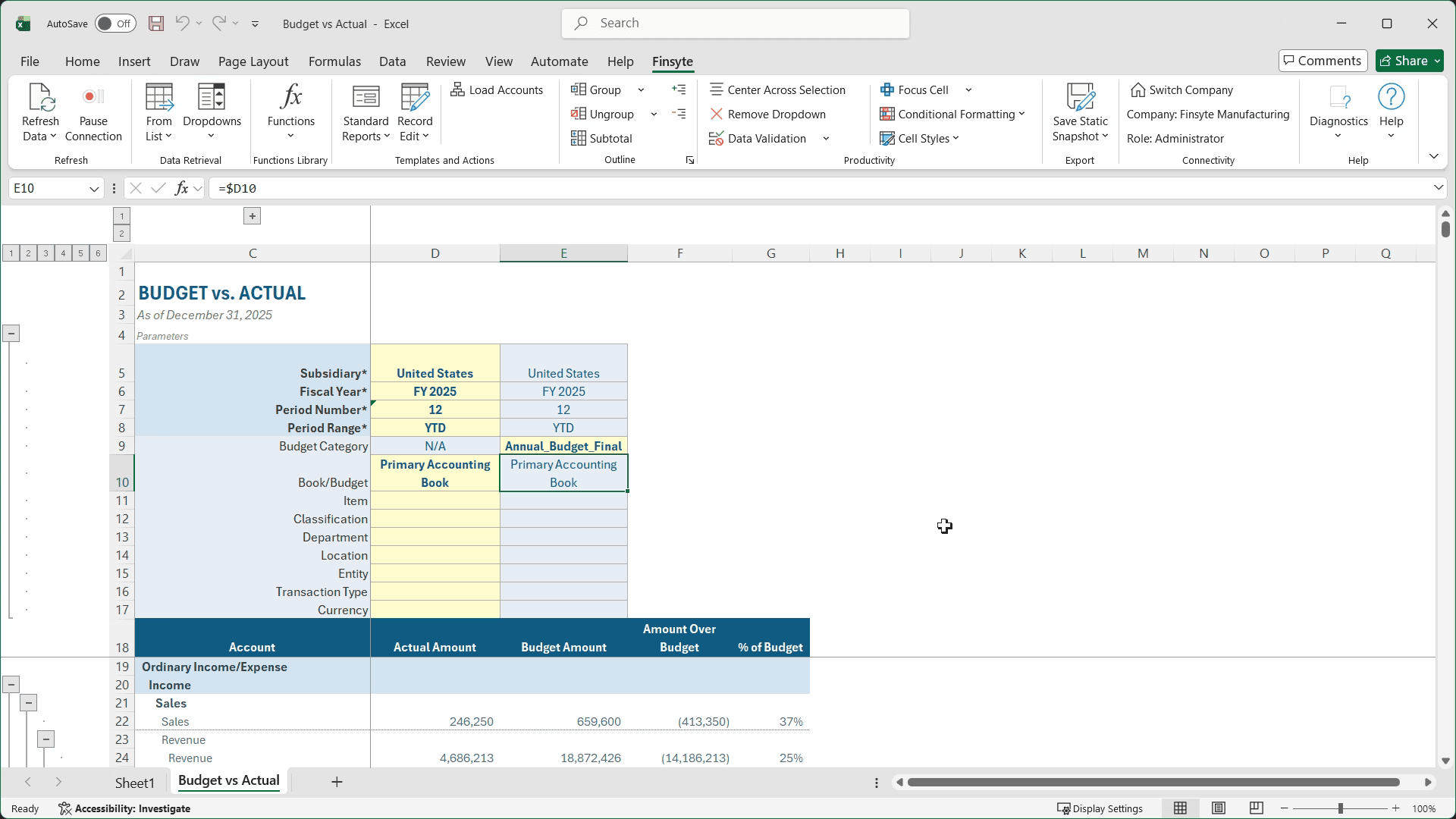
Budget against actual for every income statement account
Load Accounts builds the report from your NetSuite chart of accounts, and every row compares the actual balance with the budget you choose. Each figure is a live formula, so the report is current whenever you refresh.
- Four columns per account: Actual Amount, Budget Amount, Amount Over Budget and % of Budget
- Any NetSuite budget category, from the annual budget to a forecast
- Income, Cost of Sales, Expense and Other Income and Expenses in a collapsible account tree
- Actuals from GLAccountBalance and budgets from BudgetAccountBalance, both purpose-built Excel functions
- Drill down from any actual amount to the transactions behind it
A static snapshot of a finished budget vs actual, so you can see the layout before you connect NetSuite.
From a blank sheet to a NetSuite budget vs actual report in four steps
Insert the template
On the Finsyte ribbon, choose Standard Reports › Budget vs Actual. A new sheet opens with its parameters at the top.
Set the parameters
Fill in the yellow cells: Subsidiary, Fiscal Year, Period Number, Period Range and the Budget Category to compare against. The greyed-out parameters fill in on their own.
Load Accounts
Finsyte returns every income statement account with its actual amount, budget amount and both variance columns.
Refresh as the month closes
Use Refresh Data after new postings or a budget change. The variances update in place.
From budget vs actual variance to an updated forecast
The report shows where you stand against plan. The Budget template, in the same workbook, changes the plan in NetSuite when the numbers say it should move.
Four columns per account
Actual Amount and Budget Amount come straight from NetSuite. Amount Over Budget is the actual amount minus the budget amount, and % of Budget is the actual amount divided by the budget amount, or n/m for a line with no budget. Subtotals and Total - Income roll up the same way, and Gross Profit, Net Ordinary Income and Net Income are calculated in each column, so the variance on net income sits at the bottom of the report.
Read it at any level
Every level of the account tree is an Excel outline group. Collapse to Total - Income, Cost of Sales and Expense for the monthly review, or open a group to every account to find the line that moved. A collapsed group shows its totals in place, for actual and budget alike.
Find what drove a variance
Right-click any actual amount and choose Drill Down. A new sheet lists the transactions behind it, or breaks it down by department, class, location, subsidiary or period, so you can see what moved the number.
Compare against any budget category
Budget Category picks which NetSuite budget the report compares against: the annual budget or a forecast such as Q2_Forecast. Change it and every Budget Amount recalculates automatically. Period Range applies to both columns, so PTD compares one month with that month’s budget and YTD compares the year to date with the budget to date.
Any department, class or location
Department, Class and Location are parameters on every column. Set one for budget vs actual by department, or combine several in one column; actuals and budget filter together, so the variance is always for the same slice of the business.
Send the new numbers back to NetSuite
The Budget template downloads your NetSuite budget into Excel with actuals beside it. Choose Record Edit › Budget on the Finsyte ribbon, edit the yellow cells, and select Upload Budget to update the budget in NetSuite. For teams that prefer to plan in Excel, it’s a simpler option alongside NetSuite Planning and Budgeting.
Screen recording with on-screen captions. Caption: Select the Budget Template. On the Finsyte ribbon, the Budget Template is chosen and a BudgetUpload sheet opens. Caption: Fill in required parameters. Subsidiary is set to United States, the actual column to FY 2025 and the budget column to FY 2026 with the Budget Demo budget category. Caption: Select which accounts to load. Caption: Review Actual and Budget Results. Income statement accounts fill in with the actual amount beside twelve monthly budget columns. Caption: Adjust budget as needed. Monthly Sales budget amounts are edited. Caption: Review budget in NetSuite. The Review Budget in NetSuite link at the top of the sheet opens the budget in NetSuite.
For a worked example, see how to build a rolling quarterly forecast with live NetSuite actuals and two-way sync.
It’s Excel, so make the variance report yours
The template gets you started. In Excel, you make it your own: every amount is a cell formula, so you can add rows and columns around it: a forecast column, variance commentary or a full-year projection. A refresh updates the amounts, and your calculations follow.
- Variance commentary for the review meeting
- Forecast and full-year columns
- Conditional formatting on % of Budget
- A department or subsidiary per column
- Charts that update on refresh
NetSuite budget vs actual in Excel: FAQ
- QHow do I run a budget vs actual report from NetSuite in Excel?
- Insert the Finsyte Budget vs Actual template, fill in the subsidiary, period and budget category, and choose Load Accounts. Every income statement account fills in with its actual amount, budget amount and variances, live from NetSuite.
- QCan I compare actuals against a forecast instead of the annual budget?
- Yes. Budget Category picks the NetSuite budget to compare against, so set it to a forecast category to see actuals against the forecast. Change it back and the Budget Amount column recalculates automatically.
- QDoes it show both dollar and percent variance?
- It shows Amount Over Budget in currency, the actual amount minus the budget, and % of Budget, the actual amount as a percentage of the budget (n/m for a line with no budget). Each cell is a formula, so you can add a percent-variance column of your own beside them.
- QCan I update the budget from Excel and send it back to NetSuite?
- Yes, with the Finsyte Budget template. It downloads the NetSuite budget into Excel with actuals beside it, and Upload Budget sends your changes back to NetSuite.
- QDo I need NetSuite Planning and Budgeting?
- No. Budget vs actual works with the budgets already in NetSuite, and no extra NetSuite modules are required. For teams that prefer to plan in Excel, the Budget template is a simpler option.
Try the budget vs actual template with your own NetSuite data
30-day free trial with every Finsyte template included. No credit card required.