Connectivity
The Connectivity section is where you can see what NetSuite Company and Role you are using. If you are not yet logged in, this is also where you can initiate the login process.
Login Flow
If you are not yet logged in, the Connectivity section of the Finsyte ribbon will look like this:

Selecting Login will open the Connections window. From there, select Add New to open the Choose Authentication Method dialog.
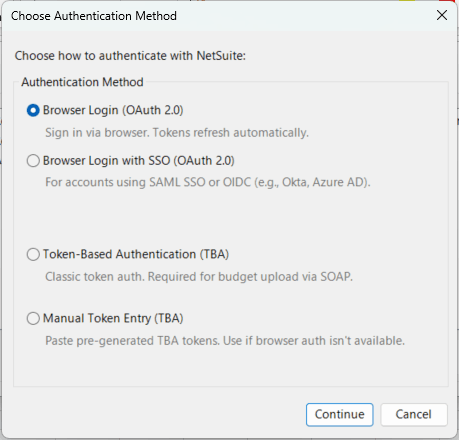
Note: If you are on NetSuite 26.1 or later, choose Browser Login (OAuth 2.0) or Browser Login with SSO (OAuth 2.0) for a more secure connection with automatic token refresh.
Select your authentication method and click Continue. Once signed in, you will be prompted to select which role, under which company, you would like to use for data retrieval.
Upon completion of the login flow, the Connectivity section will display your Company and Role.

Authentication Methods
- Browser Login (OAuth 2.0): Signs in via a browser window. Tokens refresh automatically. Recommended for most users on NetSuite 26.1 or later.
- Browser Login with SSO (OAuth 2.0): Browser-based login for accounts using SAML SSO or OIDC providers such as Okta or Azure AD. Requires your NetSuite Company ID. Recommended for NetSuite 26.1 or later.
- Token-Based Authentication (TBA): Signs in via a browser window and creates a NetSuite access token for Finsyte. Required for budget upload on NetSuite versions earlier than 26.1. Tokens do not refresh automatically.
- Manual Token Entry (TBA): Uses a Company ID, Token ID, and Token Secret that you enter in the Access Token Information window. Create the token on the NetSuite access token page linked in that window, with Finsyte TBA as the Application Name. Use this when browser sign-in is unavailable.
Connections Dialog
The Connections dialog shows up when Switch Company is selected or upon completing the login flow. This is where you can view any and all Companies and/or Roles that you have signed into NetSuite for Finsyte. This screen makes it easy to adjust the default Company and Role, log out of a company account, or change a workbook to reference a different login.

Custom Segments
The Connections dialog also controls which company's custom segments and saved search filters are available in Finsyte functions. There is a button in the connections dialog for Use for Custom Features.
The Default Custom Features column shows a check mark for the company that is currently set as the default. To change this, select a different company from the list and click Use for Custom Features. Finsyte functions use the new company's custom segments after you close the Connections dialog. Custom saved search functions change to the new company after Excel restarts, and Finsyte shows a message when a restart is needed.
For more information, see Custom Segments.