Saved Search Filters
The Saved Search Filters pane is one of the panes in the Finsyte Preferences dialog, opened from Help > Preferences in the Finsyte ribbon.
Register NetSuite saved searches as Excel functions with filter parameters from Finsyte Preferences, and configure the filters each function accepts.
The Saved Search Filters preferences pane registers saved searches as custom saved search functions named FSN.SavedSearch.YourFunctionName. Each filter you configure becomes an argument of the function, in the order you arrange them. Filters do not need to already exist in the search's criteria or available filters in NetSuite — a parameter can be added for any available field on the search's record type.
Important: This feature requires a script deployment in NetSuite. To enable it, please review our Finsyte SuiteApp instructions and contact support (opens in new tab) if there are any questions.
Note: Registered saved search functions apply to the entirety of a company, not on an individual Finsyte license basis. Saved changes sync to other Finsyte users at your company. If your company has an administrator, only company administrators can change Saved Search Filters. Other users can view the pane but cannot change it.
Registering a Saved Search
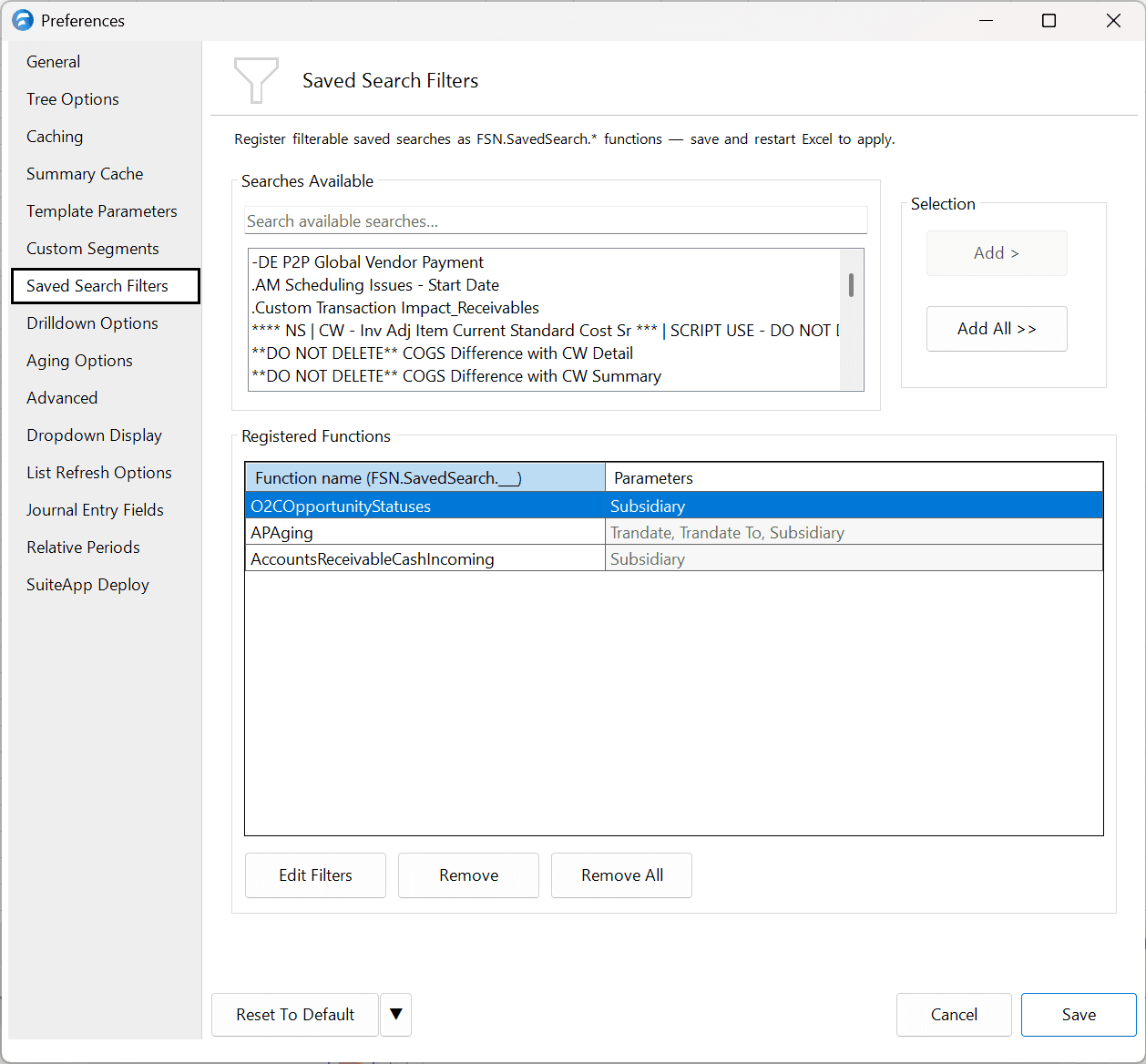
- Select Help > Preferences
- Select Saved Search Filters on the left hand side
- Under Searches Available, locate the saved search you want to register. Use the search box to filter the list by name.
- Select Add > (or double-click the search) to register it. It will appear under Registered Functions.
- Optionally, double-click the Function name cell to rename the function. Names must start with a letter, may only contain letters, numbers, and underscores, and must be unique.
- Select your chosen function and choose Edit Filters to configure the filters it accepts. See Configuring Filter Parameters for details.
- Select Save, then close and restart Excel for your new functions to become available.
Note: Excel must be restarted for changes to take effect.
Configuring Filter Parameters
- Under Registered Functions, select a function and choose Edit Filters.
- In the Configure filters dialog, the Available fields list shows the filterable fields for the search's record type. Use the find box to narrow the list.
- Select Add > to move a field to Selected filters (in order). If a field you need is not listed, select Add custom… to enter it manually.
- Optionally, rename each filter's Parameter name and verify the pre-filled Type and Operator. The function name itself can also be edited at the bottom of the dialog.
- Select OK to confirm your filter selection, then Save on the main preferences pane to apply your changes. An Excel restart will be needed for the function changes to become available.
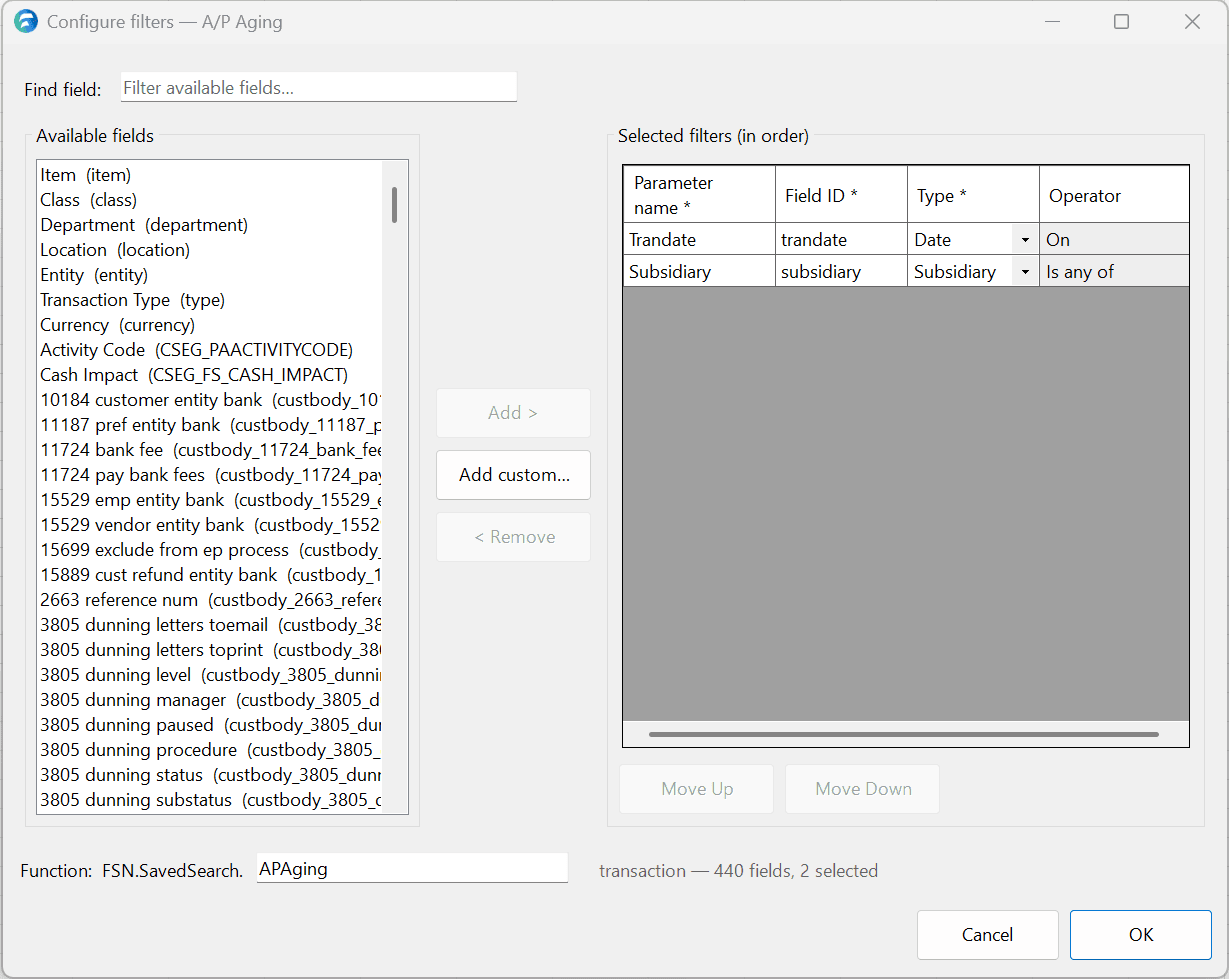
Each selected filter has the following settings:
| Column | Description |
|---|---|
| Parameter name | The argument label shown in Excel for this filter. |
| Field ID | The NetSuite search field the filter applies to. |
| Type | How input values are interpreted: a list (Subsidiary, Item, Class, Department, Location, Entity, Transaction Type, Currency, or a custom segment), Date, Number, Text, Boolean, or Internal ID. |
| Operator | How values are compared. List, Date, Boolean, and Internal ID filters set the operator automatically. Number filters offer operators such as Equal to, Less than, or Between; Text filters offer operators such as Is, Starts with, Contains, or Has keywords. |
Use Move Up and Move Down to arrange the filters — their order is the order of the function's arguments. Select OK, then Save the preferences and restart Excel to apply your changes.
Once registered, see Using a Custom Saved Search Function to call your function from a cell.
Removing a Registered Function
- Under Registered Functions, select a function and choose Remove, then Confirm Remove. Remove All deregisters every function at once.
- Select Save and restart Excel. Removing a function permanently discards its configured filters.
Tips and Tricks
- Date filters create two parameters. A Date filter adds two date arguments to the function. Filling only the first filters on that date, filling both filters the range between them (inclusive), and entering
-1as the first date includes everything since inception. - Between operators create two parameters. A Number filter using Between or Not Between adds two arguments — "(from)" and "(to)" — and both must be provided. Like date ranges, the range is inclusive.
- Add custom filters. If a filter you need is not listed under Available fields, select Add custom… to add it manually. The Field ID must exactly match the id NetSuite expects for that search filter, and you will need to know the field's data type — or select the Internal ID type and pass NetSuite internal ids directly.
- Use the Internal ID type for values Finsyte cannot validate. For data types outside the provided types, or for values that cannot be validated through the Finsyte Add-in, select the Internal ID type and pass the NetSuite internal id of the value directly.
- Function parameter values override the search's own filters of the same type. If the saved search already includes a criterion on a field registered as a parameter, the value passed from Excel replaces that criterion for the run — the two are not combined. The saved search is not permanently altered in NetSuite, only Excel output is changed.
- Leave an argument blank to skip that filter. A blank argument runs the search without that criterion, so one registered function can serve both broad and narrow pulls — no need to register a separate unfiltered variant.
- Renaming a function breaks formulas that use the old name. After renaming and restarting Excel, workbooks that call the old function name will show #NAME? until their formulas are updated.