Dropdown Display
The Dropdown Display pane is one of the panes in the Finsyte Preferences dialog, opened from Help > Preferences in the Finsyte ribbon.
Set Dropdown Display Fields for Your Lists
Finsyte makes it easy to control which column from each list is shown in the dropdowns and Range functions. For example, if you would prefer to see Accounts displayed by Account Number rather than the full Display Name with Hierarchy, the Dropdown Display preferences let you choose.
The selection applies anywhere the list appears as a dropdown (such as the Subsidiary or Account dropdown on a template) and anywhere the matching Range function (such as FSN.Range.Accounts or FSN.Range.Entities) is used.
- Select Help > Preferences
- Select Dropdown Display on the left hand side to navigate to the settings
- For each list type, choose the column you want shown in dropdowns and Range functions from the dropdown to the right of the label
- Once your selections are set, select Save
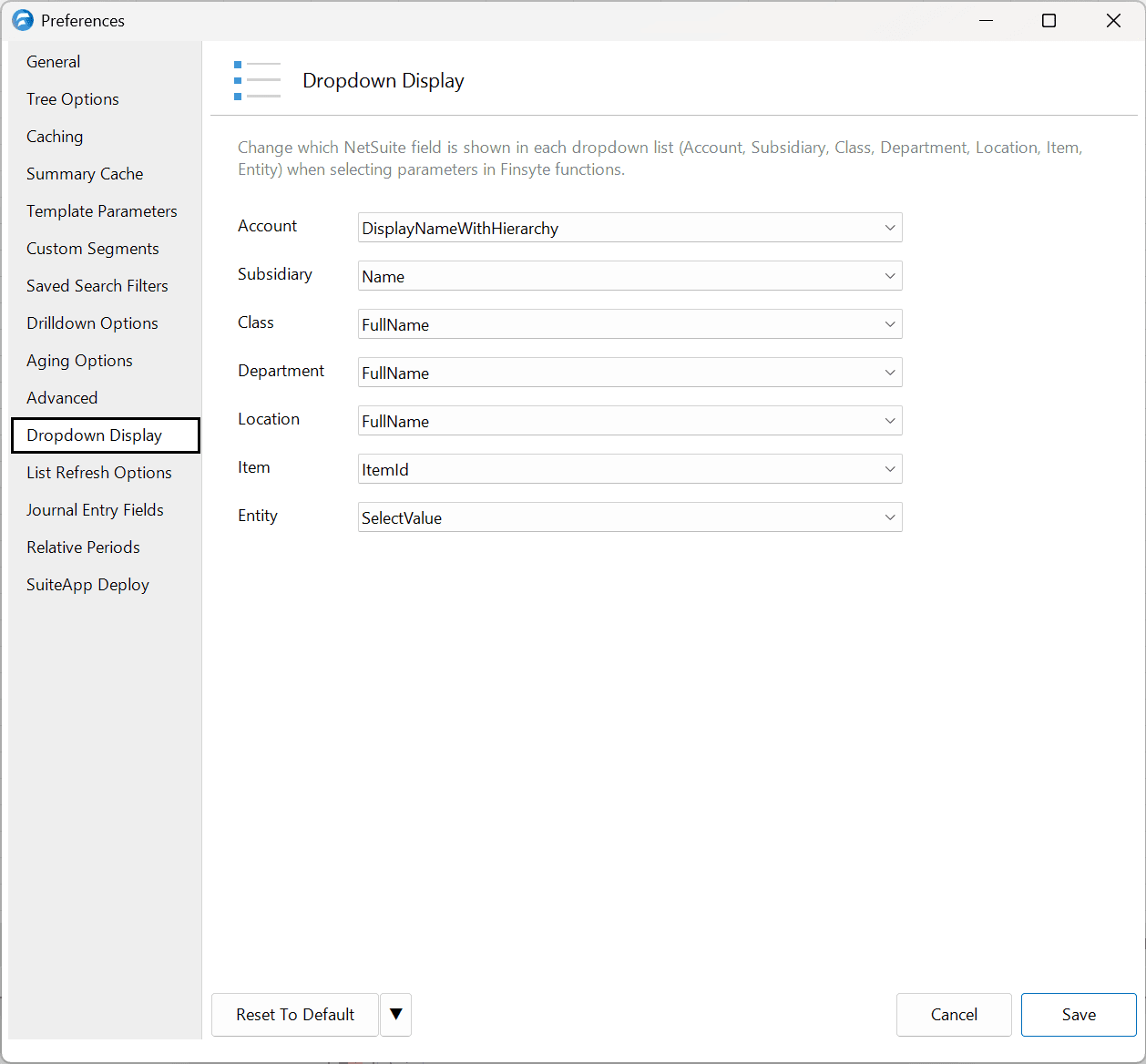
| Option | Description | Default |
|---|---|---|
| Account | The column from the GL Accounts list shown in Account dropdowns and the FSN.Range.Accounts function. | DisplayNameWithHierarchy |
| Subsidiary | The column from the Subsidiaries list shown in Subsidiary dropdowns and the FSN.Range.Subsidiaries function. | Name |
| Class | The column from the Classifications list shown in Class dropdowns and the FSN.Range.Classifications function. | FullName |
| Department | The column from the Departments list shown in Department dropdowns and the FSN.Range.Departments function. | FullName |
| Location | The column from the Locations list shown in Location dropdowns and the FSN.Range.Locations function. | FullName |
| Item | The column from the Items list shown in Item dropdowns and the FSN.Range.Items function. | ItemId |
| Entity | The column from the Entities list shown in Entity dropdowns and the entity-related Range functions (Companies, Contacts, Customers, Employees, Vendors, and so on — see Entities). | SelectValue |
Note: The available column names for each list match the column headers shown when the corresponding list is returned to the workbook (for example, From List > Accounts). Review the list to confirm available column names before changing the value.
Show Inactive Items
The Show Inactive Items In Dropdowns option on the General preferences pane controls whether records marked Inactive in NetSuite appear in dropdowns alongside active records. The Dropdown Display selections above determine which column is shown for those items.