SavedSearch Function
Description
The SavedSearch function makes it easy to load data from NetSuite through existing saved searches. Data is returned as a dynamic array, which makes it seamless to integrate with Power Query for more advanced data modeling.
Function Arguments
| Argument Name | Input Information | Required |
|---|---|---|
| Search Name | The internal identifier for a saved search. If unique, the saved search name may also be used as an input. | Yes |
| Omit Header | If TRUE, then the header row is omitted in the result. | No |
| Skip | Number of records to skip. If omitted, no records are skipped. | No |
| Take | Number of records to return/take. If omitted, all records are returned. | No |
Important: This function requires a script deployment in NetSuite. To enable this function, please review our Finsyte SuiteApp instructions and contact support (opens in new tab) if there are any questions.
Where is your Saved Search Internal Identifier
Existing Search
- In Finsyte, select From List > Saved Searches.
- See all Saved Searches returned with Name, ScriptId and Type.

OR
- View all existing Saved Searches in NetSuite by going to Reports > Saved Searches > All Saved Searches.
- Review the ID field to find the Internal Identifier for a search.

OR
- Open your search in NetSuite.
- Select "Edit" to see the ID which is not editable once created.

New Search
- When a new search is created, the ID field will be the Internal Identifier used for this function.

Pulling in a Saved Search
Let's say you have a Saved Search looking at Departmental Spending for the last month that you'd like to pull into Excel to analyze against your financial statements.
- Identify the ID for your Saved Search in NetSuite.
- In Excel, select Functions > Saved Search
Note: If your Saved Search function is disabled, it could be one of two reasons. First, the connection to NetSuite may need to be initiated, hit Refresh Worksheet to do this. If that doesn't work, it's likely because this function does requires a script deployment in NetSuite. To enable this function, please contact support (opens in new tab).
- Input the ID as Search Name for the function argument. If any alterations to the search are required, utilize the optional parameters to make needed adjustments.
- Select Enter > See the search array returned.
Note: Arrays in Excel have blue outlines. If the array cannot fit in the given cell range, it will be marked with #SPILL. Learn more about Arrays (opens in new tab).
Filter Saved Searches with Custom Functions
A saved search can also be registered as its own Excel function with filter parameters, named FSN.SavedSearch.YourFunctionName. Each filter configured for the search becomes a function argument, so the same saved search can be run with different subsidiaries, customers, date ranges, or any other available filter — without editing the search in NetSuite. These filters do not need to already exist in the search's criteria or available filters in NetSuite — a parameter can be added for any available field on the search's record type. Results are returned as a dynamic array, just like the SavedSearch function.
To register a saved search and configure its filter parameters, see Saved Search Filters in Preferences.
Using a Custom Saved Search Function
- Type =FSN.SavedSearch. in a cell and choose your function from the autocomplete list.

OR
-
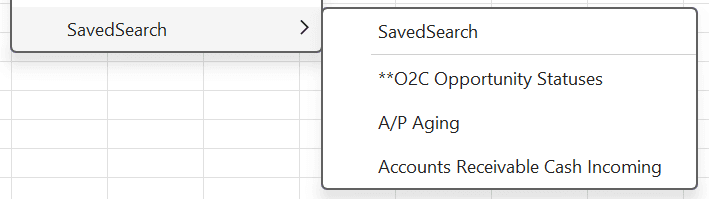
Select your function from Functions > SavedSearch in the Finsyte ribbon.
-
Provide a value for each filter argument, typed directly or referenced from other cells.
-
Select Enter > See the filtered search array returned.
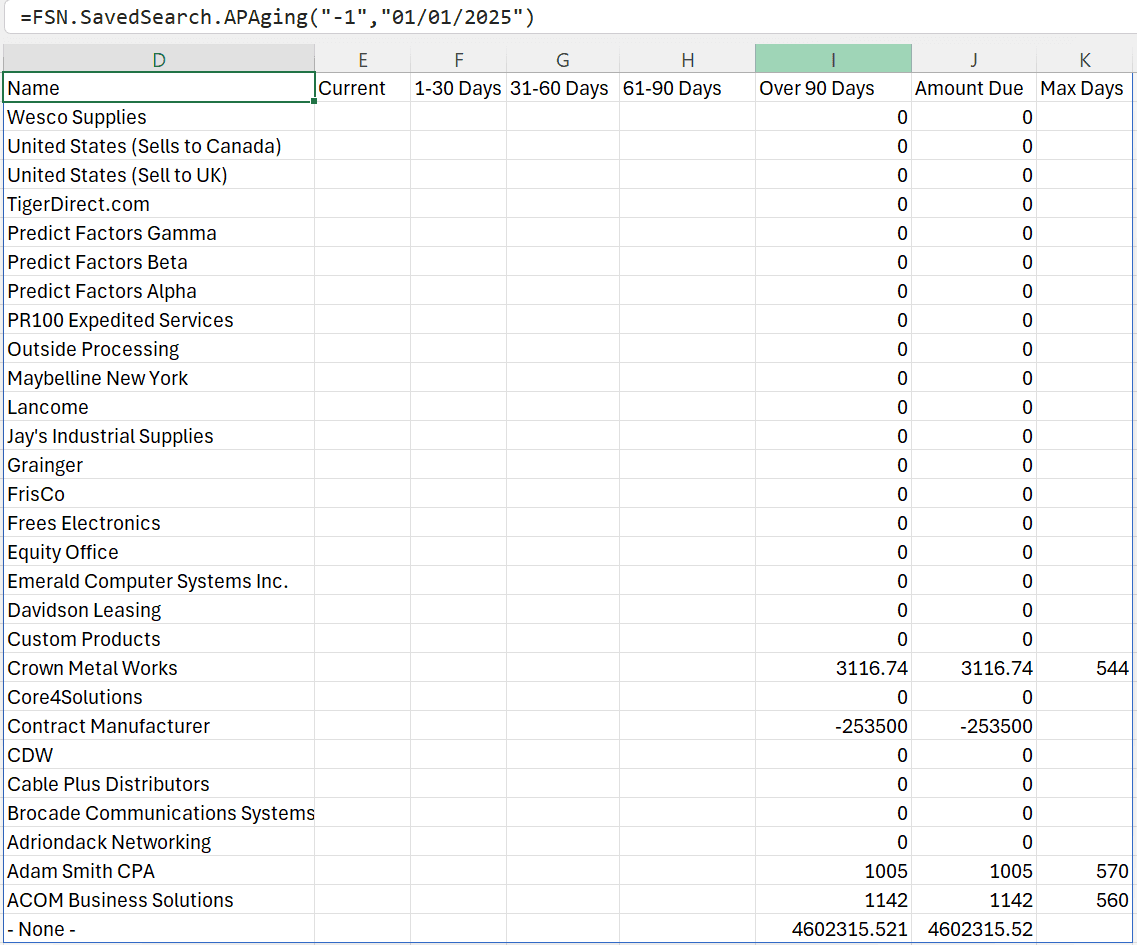
For example, an AP Aging saved search registered with a Date range filter can be called as =FSN.SavedSearch.APAging("-1","01/01/2025") to return everything from inception through January 1, 2025.
Filter Value Behavior
| Input | Behavior |
|---|---|
| Blank argument | The filter is skipped, and the search runs without that criterion. |
| Multiple values | For "any of" style filters, separate values with ^. See Specify Multiple Values. |
| Date filters | Date filters provide two arguments. One value returns results on that date; both values return the inclusive range. Enter -1 as the start date to include everything since inception. |
| List values | List filters match values by name. Subsidiary, Location, Department, and Class also accept values such as mine and mine and descendants. |
Note: Saved search function registrations are per NetSuite company.