Income Statement Template
The Income Statement Template makes it easy to consume gl accounts (Revenue, Cost of Goods Sold, etc.) and their balances based on parameters of Subsidiary, Fiscal Year, Period Number, and Period Range.
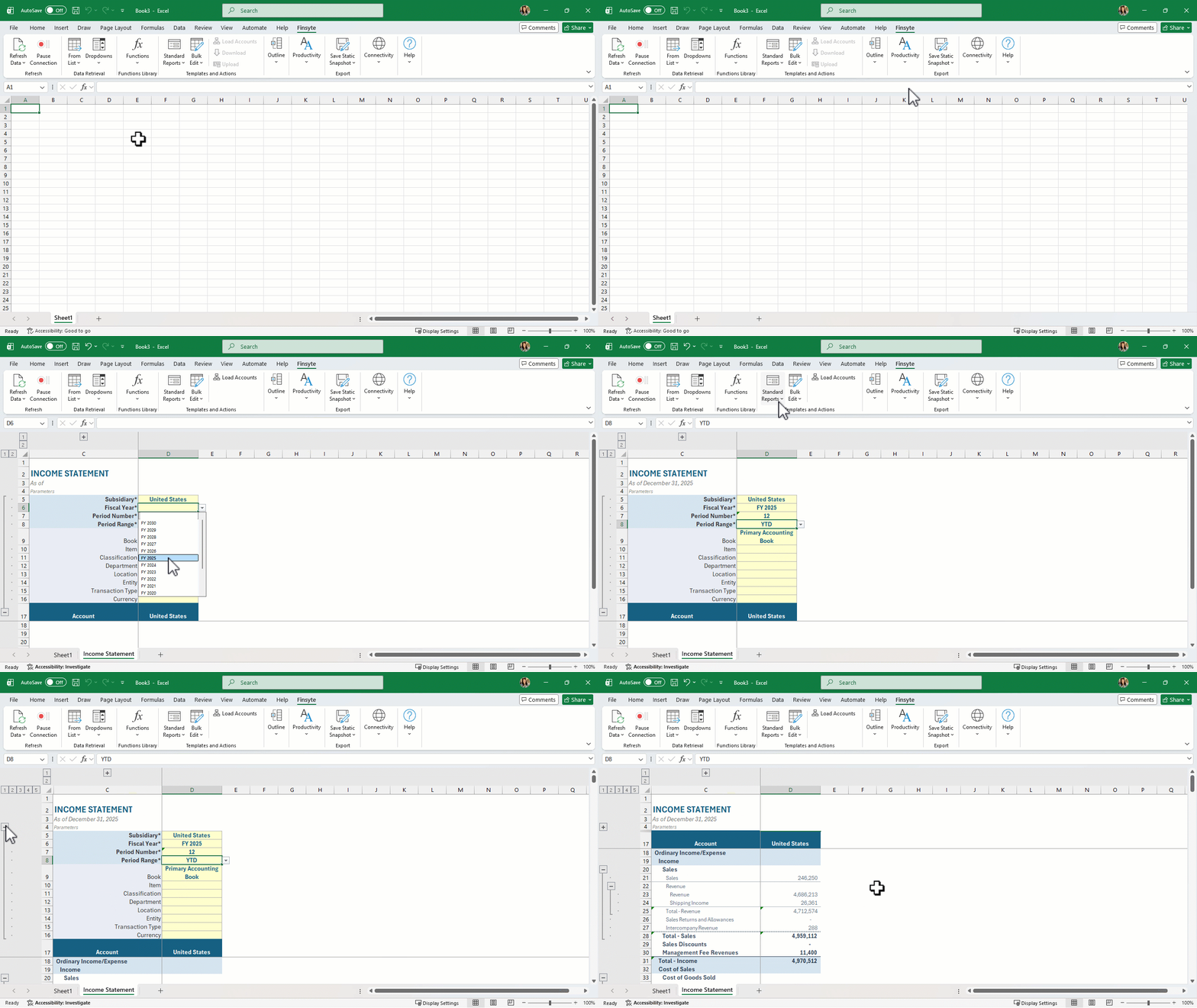
See the income statement template in action.
Utilizing the Income Statement Template
- Select Standard Reports > Income Statement > Income Statement
- View the new sheet that has been created called Income Statement
- Fill in all required parameters (asterisks by the names)
- Select the button in the ribbon under Actions of Load Accounts (active once Subsidiary is filled in). Finsyte will go to NetSuite to return the appropriate list of GL Account numbers and balances based on the identified Subsidiary input.
Remarks
- Review the GL Accounts list to understand what accounts will be available for the income statement. Every account that falls under the system generated account of FSN_L0_INC will be returned. The Parent column in this table also helps to determine the tree structure seen in the template.
- Review the Subsidiary column in the GL Accounts list to understand which accounts utilize which subsidiaries. The SubsidiariesHasAccess column generated by Finsyte can also be insightful for this.
- For a consolidated report, or several subsidiaries side by side, select the top-level (Consolidated) subsidiary before you select Load Accounts so the sheet brings in every account. An account a subsidiary can't use returns 0 and can be ignored.
- Once you've customized the template, don't select Load Accounts again. It rebuilds the account list for the first balance column only, which undoes your layout.
- Aggregate functions are utilized on the totals for groups in the financial statement to ensure proper totaling.
- The accounts under Income and Other Income have reversed signs for totaling purposes.
Example Income Statement
- Select Standard Reports > Income Statement > Income Statement to get the initial template
- Fill in the parameters (required with *) at the top of the sheet and select Load Accounts to get full account list with account balances and totals.
- Adjust parameters as needed. The balances update on their own.
- The Switch Signs operation has already been applied to corresponding account sections.