Static and Dynamic Drill Down Sheets
Right-click Drill Down can write two kinds of sheet. A static sheet is an Excel table whose rows are fixed when you drill down. A dynamic sheet holds a drilldown function that runs again each time the workbook refreshes, so its rows follow the data in NetSuite. The Drilldown style option in Drilldown Options decides which kind you get, and Dynamic is the default.
Static and Dynamic Sheets Compared
Both kinds of sheet open next to the sheet you drilled from and start the same way: the same sheet name, the same header of source arguments and the same ↩ Return to source link. For a company with Multi-Book Accounting, the header also has a Book cell after Period Range, showing the primary book when the formula you drilled from leaves Book blank; drill downs from StatAccountAmount have none. They differ below the header. Here is a drill down by department as a static sheet:

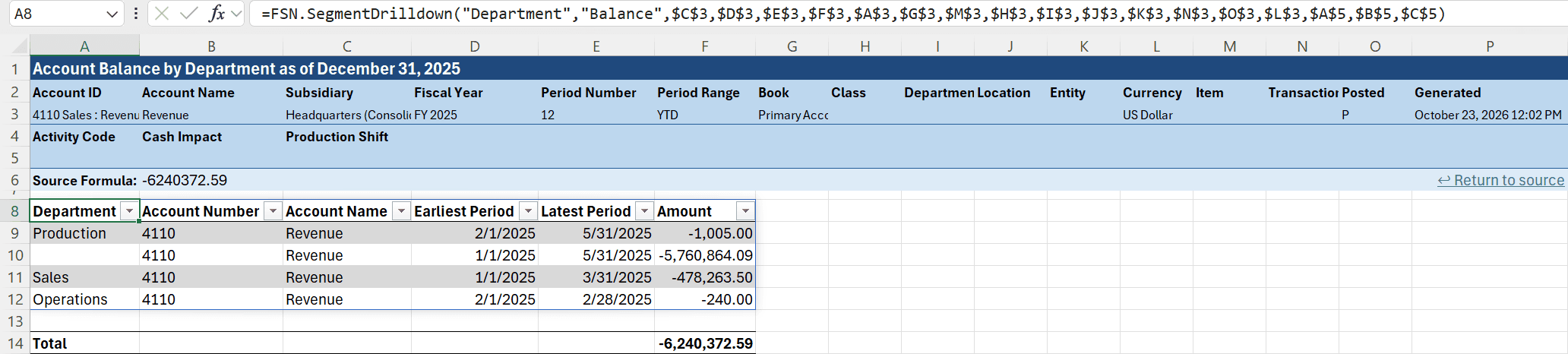
And the same drill down as a dynamic sheet, with the function's cell selected so the formula bar shows it:
| Static sheet | Dynamic sheet | |
|---|---|---|
| Below the header | An Excel table of the results | A drilldown function whose results spill below it, then a Total row |
| Which rows appear | Fixed when the sheet is written | Updated each time the function runs: on Refresh Data, on Refresh Selection of the function's cell, or when a parameter cell in the header changes |
| Changing a parameter cell in the header | Updates the Source Formula and any amount formulas, but not the rows. The cells have no dropdowns | Runs the drill down again and updates the Source Formula. Each cell has a dropdown |
| Sorting and filtering | Sort and filter from the table's header buttons | Filter from the header buttons. Excel cannot sort a spilled result |
| Total | The table's total row, below the results | The Total row, one blank row below the results. Its totals follow the filter |
On a static sheet broken down by a segment, Period or Base Accounts, each row's amount is a Finsyte formula. It reads the row's own department, period or account, and takes its other arguments from the parameter cells in the header. Refresh Data updates the amounts, and so does typing a new value in a parameter cell, which updates the Source Formula too. The rows themselves stay the same: a department that gets its first transaction after you drill down does not appear, and neither does one with activity only under a value you type in the header. Static Transaction Lines and aging summary sheets are written as values.
The function on a dynamic sheet takes its arguments from the parameter cells in the sheet's header. Each parameter cell has a dropdown with the same lists as the ribbon's dropdowns, and a Book cell lists the company's accounting books. Choose another period, subsidiary or other value, or type one, such as a ^-joined list, and the drill down runs again. Parameters the formula you drilled from left blank work the same way, so you can, for example, choose a class to narrow a drill down by department. The Source Formula cell reads every one of the parameter cells, so it changes too and keeps showing the balance the drill down breaks down. Finsyte adds the sheet right away, and the results appear below the function when the data arrives. They have banded rows, filter buttons and links to NetSuite, as described in Drilldown Functions.
Choose a static sheet to keep the detail as it was when you drilled down, or to sort it. Choose a dynamic sheet for detail that stays current, or to run the same drill down for another period or subsidiary by changing the header.
Choose Static or Dynamic
- On the Finsyte ribbon, select Help > Preferences.
- Select the Drilldown Options pane.
- In the Drilldown style dropdown, choose Static or Dynamic.
- Select Save.
Dynamic is the default, and Reset to Default sets it back to Dynamic. The change applies from your next Drill Down, in every open workbook, without restarting Excel.
Earlier versions of Finsyte wrote only static sheets. After you update, Drill Down writes dynamic sheets until you choose Static.
Which Drill Downs Follow the Setting
The setting applies to every item on the Drill Down menu and to A/R Aging Summary and A/P Aging Summary, whether you right-click one cell, a multi-cell selection or a row inside a drilldown function result. With Dynamic selected, each item writes this function:
| Drill Down item | Function on the dynamic sheet |
|---|---|
| Department, Class, Location, Subsidiary, Transaction Type, Entity, Item, Period, or a custom segment | SegmentDrilldown, by that segment |
| Base Accounts | SegmentDrilldown, by Account |
| Transaction Lines, Journal Entry Lines | TransactionLineDrilldown |
| A/R Aging Summary, A/P Aging Summary | AgingSummary |
The function's Balance Type matches the cell you drilled from: Debit from GLAccountDebitBalance, Credit from GLAccountCreditBalance, Quantity from GLItemQuantity, and Balance from GLAccountBalance and GLAccountSummaryBalance.
When Drill Down Writes a Static Sheet Anyway
Some drill downs have no dynamic form. For these, Drill Down writes a static sheet even with Dynamic selected:
| Drilling from | Items that write a static sheet |
|---|---|
| A StatAccountAmount, GLAccountNetIncome or GLAccountRetainedEarnings cell | Every item |
| Any other function on a statistical account | Every item except Journal Entry Lines |
| A GLItemQuantity cell | Every item except Department, Class, Location, Subsidiary, Transaction Type, Entity, Item and Period |
Finsyte decides when you choose the item, and a drill down with no dynamic form writes the static sheet without asking.
Drill Downs You Have Already Done
Changing Drilldown style never changes a sheet that already exists. Finsyte reads the setting only when you choose a Drill Down item.
- Static sheets stay static. This includes sheets made with earlier versions of Finsyte. Choosing Dynamic does not convert them. For a dynamic version, select ↩ Return to source on the static sheet and drill down again. Finsyte adds a new sheet and leaves the static one in place.
- Dynamic sheets keep refreshing. Choosing Static does not freeze them, because the drilldown functions do not depend on the setting. They still refresh with the workbook and run again when a parameter cell changes. To freeze one, select the cell that holds the function and use Static Snapshot Selection. The values, links, filter, banding and Total row stay.
- Drilling further uses the current setting. A drill down from a row of an existing sheet follows the setting at that moment, not the one the sheet was made with. A dynamic sheet can lead to a static sheet, and the other way around.
A Setting for Each User, Across All Workbooks
Drilldown style belongs to you, not to a workbook or a company.
- Finsyte saves it with your other preferences, for your Windows sign-in on this computer. On another computer, choose it again.
- It applies to every workbook you drill down in, including workbooks other people built, and to every NetSuite account you connect to.
- It is not saved in the workbook and is not a company-wide setting. A colleague who opens your workbook drills down with their own choice.
- Dynamic sheets you share keep working for colleagues whatever their setting, because they are ordinary Finsyte formulas. Colleagues need a version of Finsyte that includes the drilldown functions; see What's New.
- A dynamic Transaction Lines sheet takes its columns from the Columns Used list in Drilldown Options on the computer that refreshes it, so two people can see different columns on the same sheet. The Total row finds the Amount column by name, so it stays correct.