Change Line Fields on Many NetSuite Orders from Excel
Download open purchase orders with one row per line, change the department, class or rate on the lines that need it and upload. Lines you don’t change stay exactly as they are.
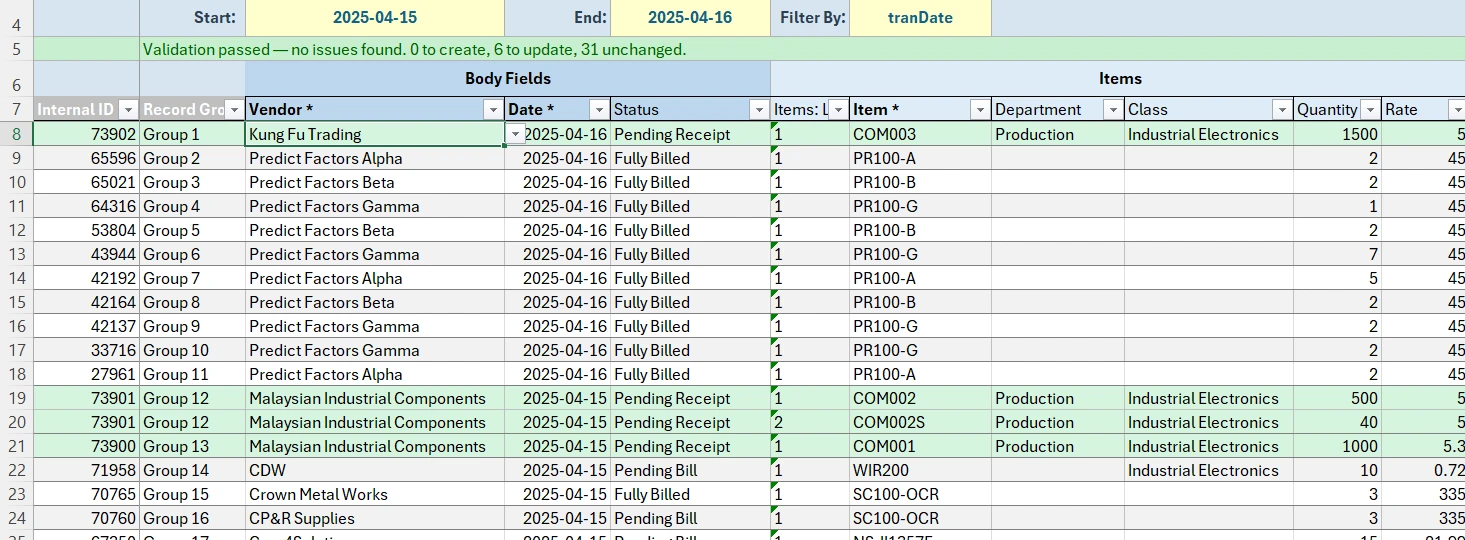
Animated walkthrough of real Excel captures with callouts. Record Edit › Bulk Records › Purchase Order Templates › Open Purchase Order Lines opens a sheet. Start and End are set to 2025-04-15 and 2025-04-16, and Download Purchase Orders brings down 37 orders, one row per line. Excel’s filter on the Status column narrows the sheet to the Pending Receipt lines, Production is filled down in the line Department column, and the filter is cleared. Validate Sheet reports 6 to update and 31 unchanged, and Add/Edit Purchase Orders reports Upload complete, 6 updated; changed orders read Updated Purchase Order and the rest Skipped.
The change is on the lines, across many orders
A department code was wrong on a month of purchase orders. A supplier raised prices and the open lines need the new rate. A new class structure starts and open orders have to follow. The change is the same on every line, but it’s spread over many orders.
On a Bulk Records sheet every line is a row, so Excel’s filter, find and replace and fill down make the change, and one upload sends it.
- Who
- Operations, purchasing, AR and AP
- When
- Location changes, coding fixes, supplier price changes
- Record types
- Purchase Order
Set up an order template with line columns
Build one template per record type, with only the line fields you intend to change. Sublists with no columns on the template are never touched.
A starting point. These are the settings we used for this job. Add any columns your team works with, rename them, and set the filters and dropdowns to suit. You can edit the template whenever your needs change.
Pick the record and name the template
Template Basics in the docs- Record Type
- Purchase Order
- Visibility
- Shared, so operations and AP use the same layout
Choose the columns
Template Columns in the docs- Add
- Status, from Body Fields, to see which orders are still open
- Items
- Item, Quantity, Rate, Department and Class
- Remove
- The Expenses and Tax Details columns, to keep the sheet to the lines you’re editing.
- Column settings
- Mark the body fields Read only. They’re there to identify the order.
Set how records download
Template Filters in the docs- Optional filters
- Add
tranDateandentitywith Add an optional filter, so a date range or one vendor can be pulled. - Status
- Download by date or vendor, then use Excel’s filter on the Status column to work on the open orders.
Load the dropdown lists
Template Dropdowns in the docs- Nothing to set
- Location, Department, Classification and Item come with Finsyte’s own lists already in place.
Change the lines in four steps
Use Excel’s own tools for the change itself. The sheet is an ordinary worksheet.
Download the open orders
Set a date range or a vendor in Filter By and select Download. Each line arrives as its own row with its Items: Line ID.
Change the lines
Filter the sheet to the lines that need the change, then fill down the new department, class or rate.
Validate the sheet
Validate Sheet checks each value against its list and marks the orders that will change. Orders you didn’t touch are skipped.
Upload
Clear Excel’s filter, then select Add/Edit. Only the fields you changed are sent, and each line keeps its Line ID.
A new Department on open purchase order lines
Open lines get a Department, and the rest stay as they are. Validate Sheet counts 6 to update and 31 unchanged.
Before you upload
- Use Excel’s filter to hide the lines you’re leaving alone. Every downloaded row stays on the sheet, because a row that’s removed removes its line on upload.
- Lines already received or billed take changes too, with NetSuite’s note on the row’s Status.
- Change any line field that’s on the order’s form. Each row’s Status confirms what NetSuite saved.
- A blank cell on a downloaded row clears that field in NetSuite.
- Start every edit from a download. Downloaded rows carry the Internal ID and Line IDs that keep the other lines in place.
Order line edits in Bulk Records: FAQ
- QCan I change line-level fields on many purchase orders at once?
- Yes. Download the orders to a Bulk Records sheet, where every line is a row, change the line cells and upload. Each line keeps its Line ID, so only the lines you changed are updated. Any line field on the order’s form can be changed this way.
- QWhat happens to the lines I leave alone?
- They stay exactly as they are. Only the fields you changed are sent, and sublists with no columns on the template stay as they are too.
- QCan I change the rate on open purchase order lines?
- Yes. Add Rate to a Purchase Order template, download the open orders, change the rates and upload.
- QDoes it work with custom segments?
- Yes. A custom segment on the lines is added as a column like any other field.
More use cases
Close old orders
Download open orders older than a cut-off date, mark the lines that will never be received or fulfilled as closed and upload them in one batch.
Prices and preferred vendors
Download items with their price levels and vendors, work out the new prices in Excel and upload. Items you don’t change are skipped.
Monthly journal entries
Copy last month’s accruals and allocations, change the amounts and upload them as new entries, each checked for balance first.
Try it with your own NetSuite data
30-day free trial with every Finsyte feature included. No credit card required.