Bulk Close Old NetSuite Orders from Excel
Download the open orders older than your cut-off date, mark the lines that will never ship, be received or be billed as closed, and upload them in one batch. Open-order reports are right again the same day.
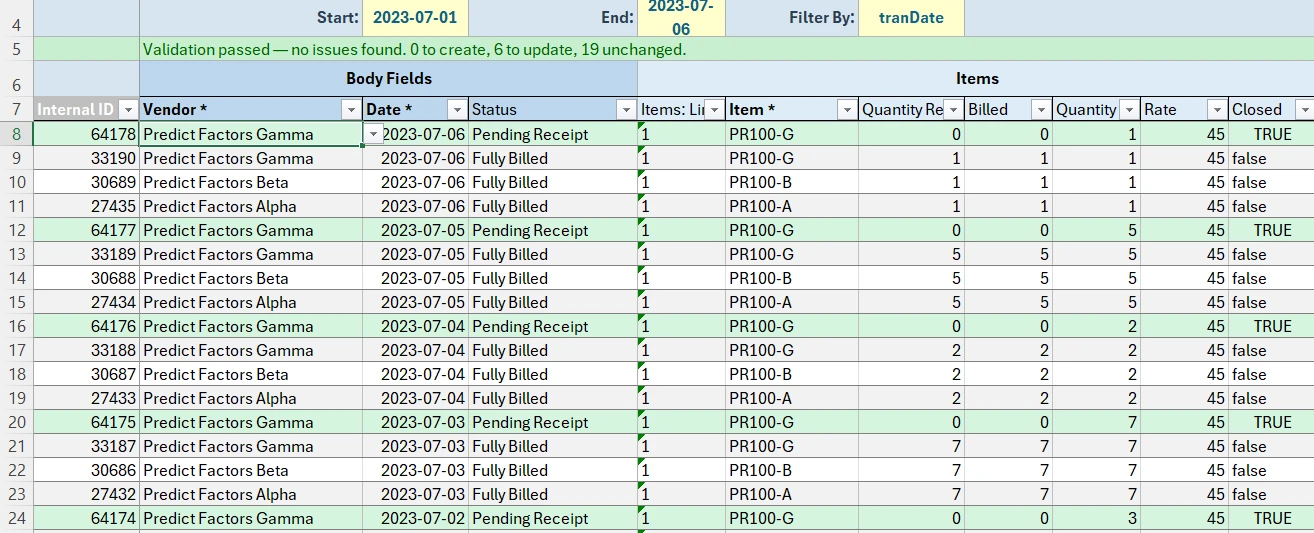
Animated walkthrough of real Excel captures with callouts. Record Edit › Bulk Records › Purchase Order Templates › Close Old Purchase Orders opens a sheet. Start and End are set to 2023-07-01 and 2023-07-06, and Download Purchase Orders brings down 25 orders of every status with their received and billed quantities. Excel’s filter on Status narrows to the six Pending Receipt lines, true is filled down in Closed, and the filter is cleared. Validate Sheet reports 6 to update and 19 unchanged, and Add/Edit Purchase Orders reports Upload complete, 6 updated. Downloading again shows each of the six orders with the status Closed.
Old orders that will never be finished
Purchase orders for goods that were never sent, sales order backorders the customer cancelled by phone, transfer orders from a reorganized warehouse. They sit open, inflate open-order and commitment reports, and get in the way at year end.
On a Bulk Records sheet each line is a row, so closing them is a column of true values and one upload.
- Who
- Purchasing, operations, controllers
- When
- Period end, year end, after a system or warehouse change
- Record types
- Purchase Order, Sales Order, Transfer Order
One cleanup template per order type
Keep the columns to what you need to decide and to close the line.
A starting point. These are the settings we used for this job. Add any columns your team works with, rename them, and set the filters and dropdowns to suit. You can edit the template whenever your needs change.
Pick the record and name the template
Template Basics in the docs- Record Type
- Purchase Order (repeat for Sales Order and Transfer Order)
- Template Name
- For example, “PO cleanup: close lines”
Choose the columns
Template Columns in the docs- Add
- Status from Body Fields, and Quantity Received and Billed from Items
- Closed
- Search
isClosedand tick the one in the Items group. On some forms it shows unlabeled, so rename the column Closed in its settings and move it up beside the other Items columns. - Remove
- The Expenses and Tax Details columns. Sublists with no columns on the template are left as they are.
- Column settings
- Mark everything except Closed as Read only. The other columns are there to decide which lines to close.
Set how records download
Template Filters in the docs- Optional filters
- Add
tranDateandentitywith Add an optional filter, and preselecttranDate. - Status
- Add Status as a column, and Excel’s filter narrows the download to the open orders.
Load the dropdown lists
Template Dropdowns in the docs- None needed
- Closed is a checkbox, entered as
trueorfalse.
Close the lines in five steps
Review first, close second. The sheet makes both easy.
Download up to the cut-off
Enter a date range in Start and End, a month or a quarter at a time, and select Download. Orders of every status come down.
Review the lines
Filter the Status column to the orders still waiting on receipt, then check the received and billed quantities. Each row’s Status link opens the order in NetSuite.
Mark them closed
Type
truein Closed on every line to close, and fill it down.Validate and upload
Run Validate Sheet, then select Add/Edit. Orders you left alone are skipped.
Download again to confirm
A fresh download of the same range shows each order’s Status and each line’s Closed value as NetSuite saved them. Download clears the sheet’s rows first, so upload before you download.
Six old purchase order lines ready to close
Closed is true on the lines still pending receipt. Validate Sheet counts 6 to update and 19 unchanged.
Before you upload
- Closing works line by line. An order closes once all of its lines are closed or complete.
- Use Excel’s filter to hide the lines you’re keeping open. Every downloaded row stays on the sheet, because a row that’s removed removes its line.
- A line closed by mistake can be reopened the same way:
falsein Closed and upload.
Closing orders in Bulk Records: FAQ
- QCan I close many purchase orders in NetSuite at once?
- Yes. Download the open purchase orders to a Bulk Records sheet, enter true in the Closed column on every line to close and upload them together.
- QCan I close some lines and leave others open?
- Yes. Closed is set line by line, so an order can keep the lines that are still expected while the rest are closed.
- QDoes it work for sales orders and transfer orders?
- Yes. Build the same template on Sales Order or Transfer Order. Both use the same Items columns.
- QCan I see which orders are still open afterwards?
- Download the same date range again. Each order’s Status and each line’s Closed value show what NetSuite saved.
More use cases
Order line edits
Download open purchase orders with one row per line, change the department, class or rate on the lines that need it and upload. Other lines stay as they are.
Prices and preferred vendors
Download items with their price levels and vendors, work out the new prices in Excel and upload. Items you don’t change are skipped.
Monthly journal entries
Copy last month’s accruals and allocations, change the amounts and upload them as new entries, each checked for balance first.
Try it with your own NetSuite data
30-day free trial with every Finsyte feature included. No credit card required.