Update NetSuite Customers and Vendors in Bulk from Excel
Download customers or vendors to a sheet, change terms, credit limits and addresses with Excel’s own tools, inactivate the ones you no longer use and upload only what changed.
Animated walkthrough of real Excel captures with callouts. Record Edit › Bulk Records › Customer Templates › Customer Cleanup opens a sheet. Start and End are set to 2025-06-01 and 2025-06-02 with Filter By on dateCreated, and Download Customers brings down five customers with their sales rep and address. Net 30 is filled down in Terms and a new credit limit is typed on each. Validate Sheet reports 5 to update, and Add/Edit Customers reports Upload complete, 5 updated, with each row’s Status linking to its customer.
Master data drifts, and the fixes come in batches
New payment terms for a customer segment, credit limits after a review, a sales territory handed to a new rep, addresses gathered from a mailing. After a merger, hundreds of vendors to tidy and inactivate. Each is a small change made many times.
A Bulk Records sheet holds the whole list with its current values, so the change is a fill down or a lookup, and the upload sends only the cells that differ.
- Who
- Credit managers, AR and AP, sales operations
- When
- Credit reviews, territory changes, year-end cleanup, after a merger
- Record types
- Customer, Vendor
Set up a Customer template, and one for vendors
Add only the fields this cleanup touches. A smaller sheet is easier to check.
A starting point. These are the settings we used for this job. Add any columns your team works with, rename them, and set the filters and dropdowns to suit. You can edit the template whenever your needs change.
Pick the record and name the template
Template Basics in the docs- Record Type
- Customer (and a second template for Vendor)
- Visibility
- Shared, so AR and AP use the same layouts
Choose the columns
Template Columns in the docs- Remove
- The recommended sublists you aren’t changing: Currency List, Group Pricing, Item Pricing and Sales Team on customers; Currency List, Rates and Roles on vendors.
- Body Fields
- Customer ID, Company Name, Terms, Credit Limit and Inactive
- Address Book
- The individual fields, such as Address Book Address: Address 1, …: City and …: Zip, not the combined Address.
- Column settings
- Mark Customer ID and Company Name Read only.
Set how records download
Template Filters in the docs- Optional filters
- Already listed for customers and vendors, including
salesRep,territory,subsidiaryandlastModifiedDate. Preselect the one you use most. - Default filter
- Optional, for example Inactive is false, so retired records stay out of the sheet.
Load the dropdown lists
Template Dropdowns in the docs- Terms
- From NetSuite (fetch a table). Select Fetch from NetSuite to load your terms.
Clean up the list in four steps
Work out the changes in Excel, then send them in one upload.
Download the records
Filter by sales rep or subsidiary, or set Filter By to None, and select Download.
Make the changes
Fill down new terms, look up new credit limits from your review, or type true in Inactive.
Validate the sheet
Validate Sheet checks every value against its list and counts the records that will change.
Upload
Select Add/Edit. Only the changed fields are sent, and unchanged records are skipped.
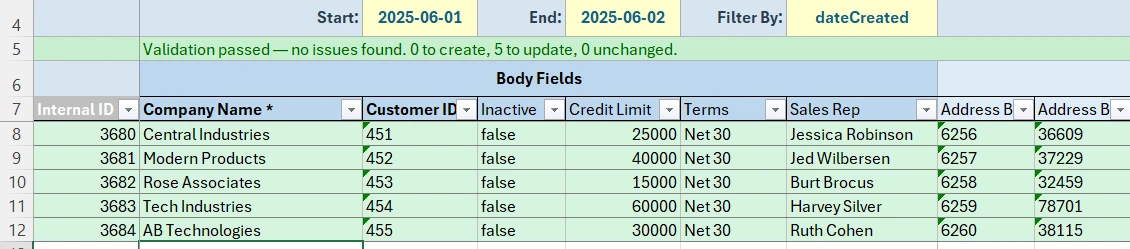
Five customers with new terms and credit limits
Each customer gets Net 30 terms and its own credit limit. Validate Sheet counts 5 to update.
Before you upload
- Use Excel’s filter to hide address rows you’re leaving alone. Each address row on the sheet is the address kept in NetSuite.
- The Sales Team list is sent as a complete list, so list every member the team should have.
- A blank cell on a downloaded row clears that field in NetSuite.
- Each row’s Status confirms the update, with NetSuite’s message on any record that needs another field filled in.
Customer and vendor cleanup in Bulk Records: FAQ
- QCan I update payment terms on many NetSuite customers at once?
- Yes. Download the customers to a Bulk Records sheet, change the Terms column and upload. Only customers whose terms changed are updated.
- QCan I update customer addresses from Excel?
- Yes. Add the Address Book Address fields, such as Address 1, City and Zip, to the template. Each address is a row with its Line ID, so changing a cell updates that address in place.
- QCan I inactivate vendors in bulk?
- Yes. Download the vendors, enter true in Inactive on the ones to retire and upload.
More use cases
Bank payment templates
Download every company bank account to a sheet, pick the new EFT template on the accounts that move and upload them together. The same pattern updates vendor bank details.
Monthly journal entries
Copy last month’s accruals and allocations, change the amounts and upload them as new entries, each checked for balance first.
Reorg reclassification
Create the new segment values, move open orders, employees and items onto them in one upload, and inactivate the old values when nothing points at them.
Try it with your own NetSuite data
30-day free trial with every Finsyte feature included. No credit card required.