Most FP&A teams finalize the annual budget, load it into NetSuite, and move on. But by the time Q2 arrives, that plan is already a snapshot of assumptions made months ago. Business conditions shift, actuals diverge from projections, and the forecast needs to reflect where the year is actually heading — not where you thought it would go in January. A static NetSuite budget can't do that on its own.
A rolling quarterly forecast model solves this. And with Finsyte's Budget Management template, you can build and maintain one entirely in Excel — with live NetSuite data updating in real time and figures that push directly back to NetSuite when you're ready.
Step 1: Set Up Five NetSuite Budget Categories
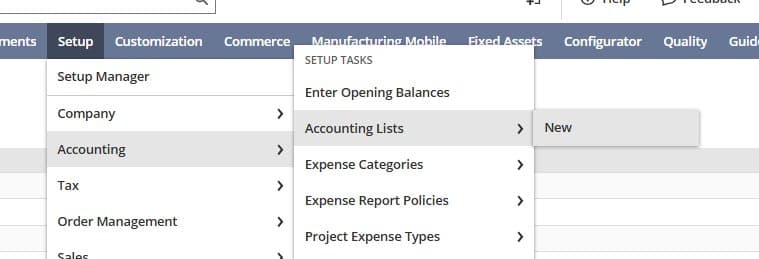
The foundation of this workflow is five distinct budget categories. In NetSuite, navigate to Setup > Accounting > Accounting Lists, and create a new entry for each of the following:
- Annual_Budget — your finalized full-year plan; set once, locked, and never overwritten
- Q1_Forecast — mirrors the annual budget at the start of the year; your baseline rolling forecast
- Q2_Forecast — replaces Q1 periods with actuals once Q1 closes; Q2–Q4 adjusted as needed
- Q3_Forecast — replaces Q1–Q2 periods with actuals; Q3–Q4 updated to reflect revised expectations
- Q4_Forecast — replaces Q1–Q3 with actuals; Q4 adjusted for your final push to year-end
This structure gives you a clean audit trail stored in NetSuite. At any point in the year you can compare your current forecast against the original annual budget or against any prior quarter's version because every iteration is preserved and accessible.
Step 2: Open the Budget Template in Finsyte
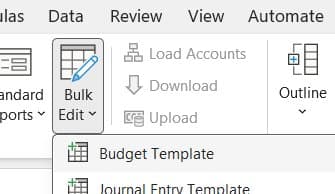
In Excel, navigate to the Finsyte ribbon and select Bulk Edit > Budget Template. This loads Finsyte's Budget Management template directly into your workbook, pulling live NetSuite data into individual Excel cells in real time without the need for manual export.
Step 3: Upload the Annual Budget and Q1 Forecast
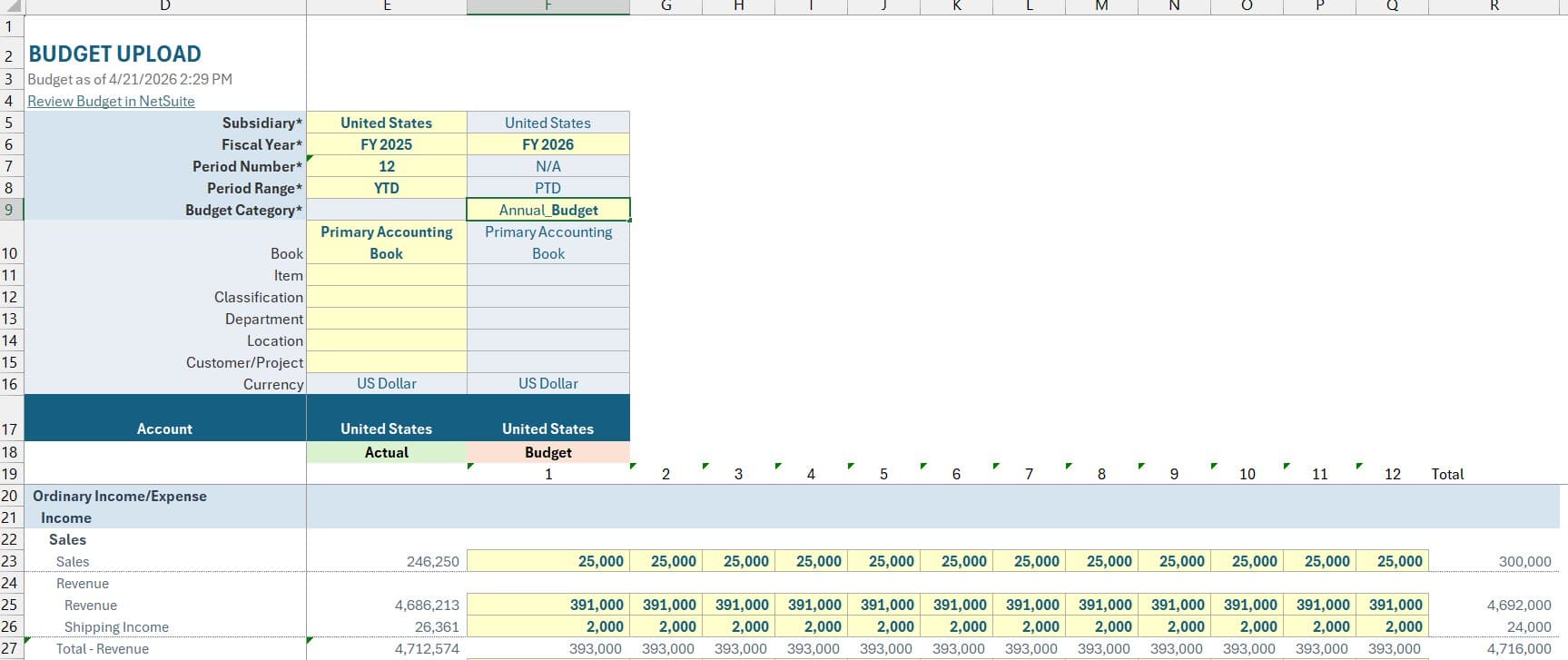
With the template loaded, set your filter for the year you are budgeting in and enter your budget figures for all 12 periods. You'll perform two separate uploads from this same data:
- First upload: Set Budget Category to
Annual_Budgetand upload. This is your locked reference — it captures the original plan and will never be changed. - Second upload: Change Budget Category to
Q1_Forecastand upload the same figures again. Q1_Forecast always mirrors the annual budget — it's the starting point for your rolling forecast that will evolve each quarter.
Keeping these as two distinct records matters: Annual_Budget becomes your permanent baseline for year-end variance analysis, while the quarterly forecasts are the versions you'll update as the year progresses.
Step 4: Build the Q2 Forecast Using Real-Time Actuals
At the start of Q2 — or as soon as Q1 is closed by accounting — return to the budget template to build the Q2_Forecast. This is where live NetSuite data does the heavy lifting.
First, set up a staging area for your Q1 actuals directly in the workbook:
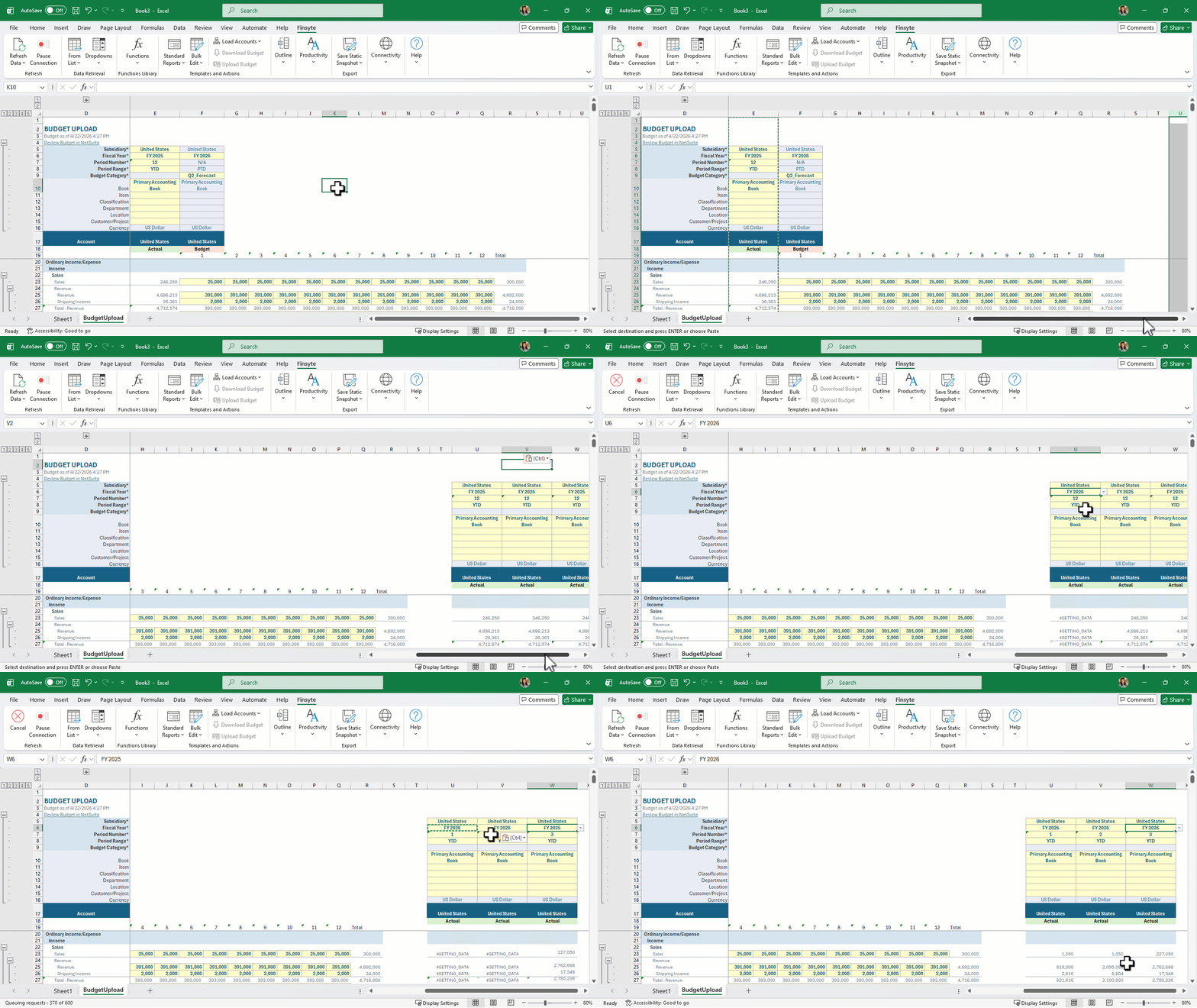
- Copy all content in column E (your existing Actuals column) and paste the copy into column U, outside the upload zone so it doesn't interfere with the template format.
- On column U, change Period Range from
YTDtoPTD, set Fiscal Period to1and Fiscal Year to the current year. PTD returns the individual period's actuals rather than a cumulative total — which is what you need for period-level actuals to be returned. - Copy column U into columns V and W, then change the Fiscal Period to
2and3respectively. You now have a three-column staging area showing real-time actuals for periods 1, 2, and 3.
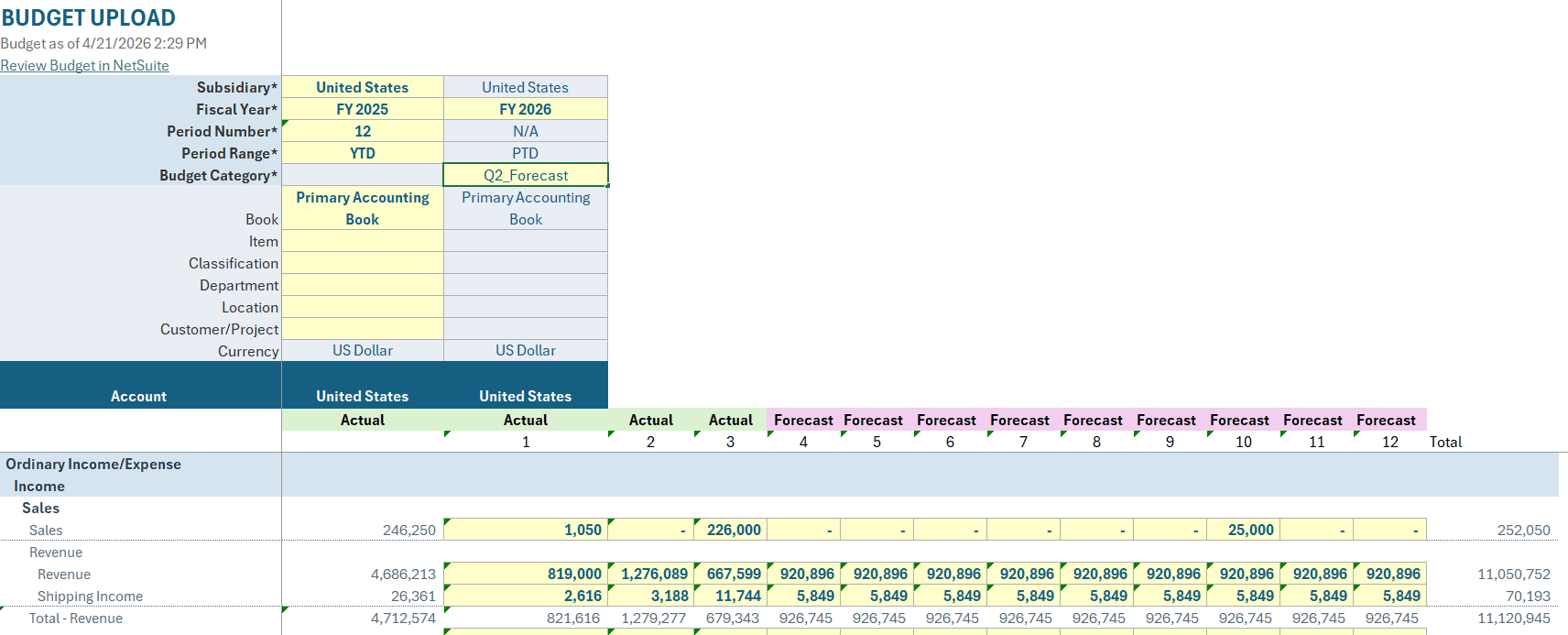
Next, in the budget template columns for periods 1–3, use Excel cell references to pull directly from your staging columns U, V, and W. Your Q2_Forecast for those periods now reflects what actually happened in Q1 — not what was originally planned.
With actuals locked in for periods 1–3, review and adjust the forecast values for periods 4–12 based on what Q1 actuals are telling you. This is your forward-looking forecast — update as conservatively or aggressively as the business warrants.
Step 5: Push the Forecast Back to NetSuite
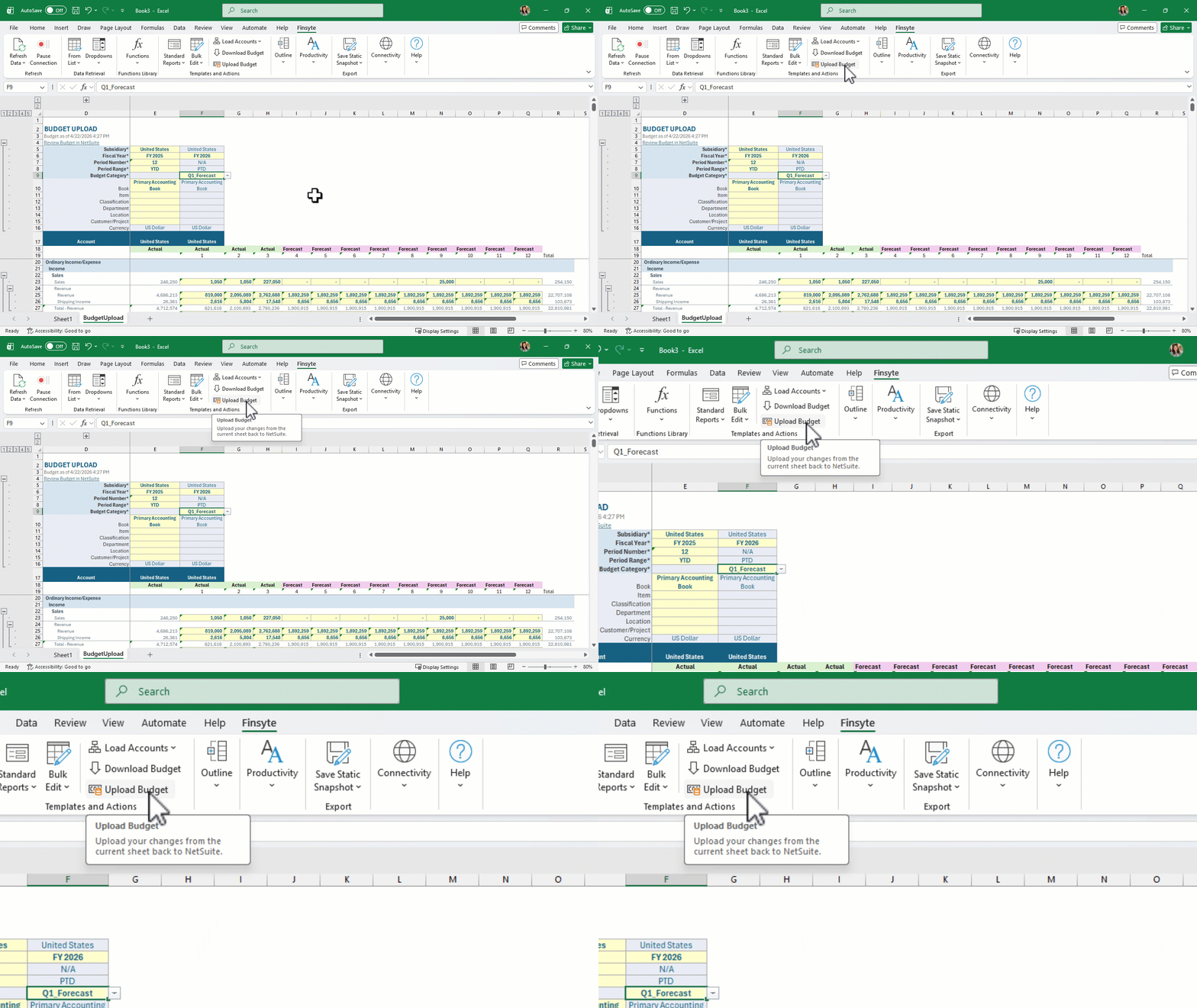
Once the Q2_Forecast is complete in Excel, ensure the Budget Category is set to Q2_Forecast and use Finsyte's two-way sync to push the data back to NetSuite. Select Upload Budget. NetSuite stores it alongside your Annual_Budget and Q1_Forecast, instantly accessible for reporting, variance analysis, or audit review.
One important note: if accounting hasn't fully closed all Q1 periods before you build the forecast, that's not a problem. Simply highlight columns U–W at any time and use Finsyte's Refresh Selection to pull the latest actuals from NetSuite instantly. Your cell references in the budget template update automatically so you can upload a more accurate forecast the moment the books are finalized, with no rework required.
Step 6: Repeat for Q3 and Q4
The process is identical for each subsequent quarter — only the number of periods locked to actuals changes:
- Q3_Forecast: extend your staging area through column Z (periods 1–6 as PTD actuals), reference into the template, and reforecast periods 7–12.
- Q4_Forecast: extend through period 9 actuals, then adjust Q4 for your final year-end outlook.
Because the template structure stays the same every quarter, the process becomes faster with each iteration. The framework doesn't change — only the numbers do.
What About NetSuite Planning and Budgeting?
NetSuite Planning and Budgeting (NSPB) can be a powerful tool for organizations ready to invest in it. It's a dedicated add-on module with its own implementation, licensing, and learning curve — and for teams that have made that commitment, it offers capabilities well beyond what a budgeting workflow requires.
For FP&A teams that aren't on NSPB yet — or aren't ready to be — this Finsyte workflow delivers rolling quarterly forecasts right now, using NetSuite's native budget categories and the Excel environment your team already works in. No additional module, no implementation project, no waiting. If the goal is to get a structured, repeatable forecasting process in place today, Finsyte gets you there without the overhead.
Why This Approach Works for NetSuite FP&A Teams
A static annual budget gets stale fast. This rolling structure keeps your NetSuite FP&A workflow grounded in reality at every stage of the year. Completed quarters are locked to actuals the moment they're available, and open quarters always reflect your current best thinking. There's no lag, no manual reconciliation step, and no question about which version is current because the live connection to NetSuite means the numbers are always up to date.
Every version of the forecast is stored in NetSuite under its own budget category, so your team always has a clean record of how expectations evolved from the original plan. That audit trail matters at year-end, and it costs nothing extra to maintain.
Ready to build a rolling forecast model backed by real-time NetSuite data in Excel?
- Start Your Free Trial and see Finsyte's Budget Management template in action using your data
- Watch the Full Demo