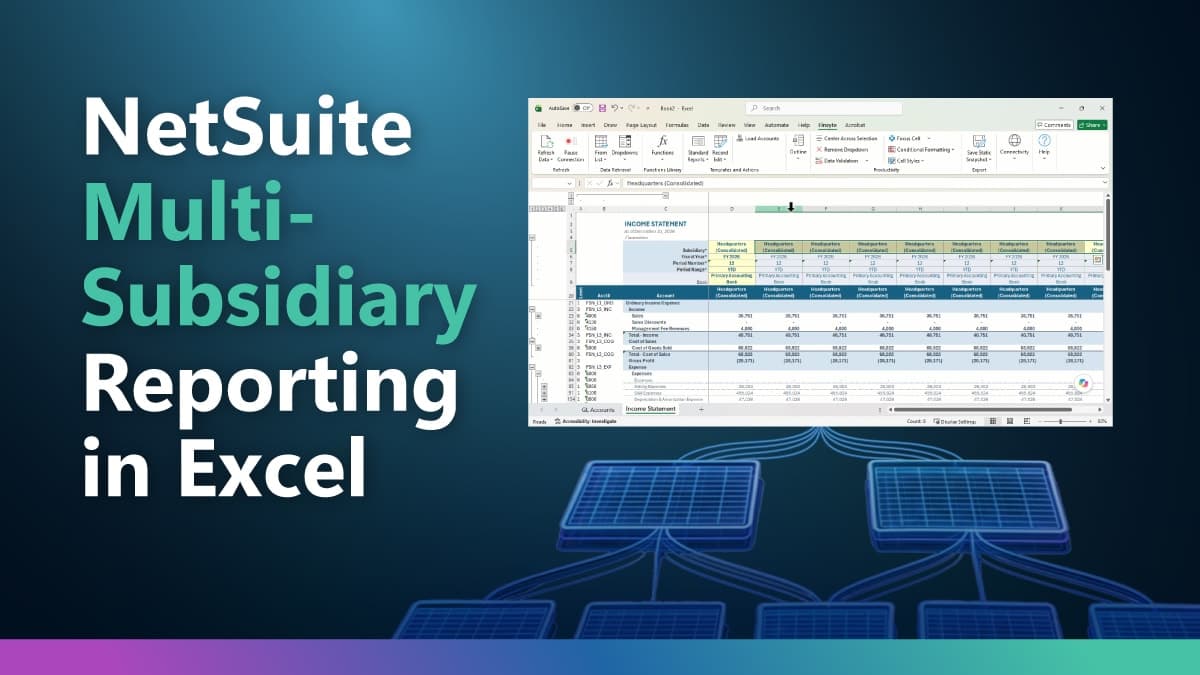
NetSuite is built for multi-subsidiary organizations. Subsidiary hierarchies, consolidation, and intercompany relationships are native to the system, and its built-in consolidated reports do exactly what they were designed to do.
Many finance teams still want that consolidated view in Excel, where it can be formatted, annotated, and extended alongside the rest of their close analysis. This article shows how to re-create it with Finsyte, and what to confirm in NetSuite so eliminations come out clean.
Start with a Standard Template and the Consolidated Subsidiary
A consolidated report is only as reliable as its account list, so this is where to start:
- Open a standard template. Choose one of the Standard Report Templates, such as the Income Statement or Balance Sheet.
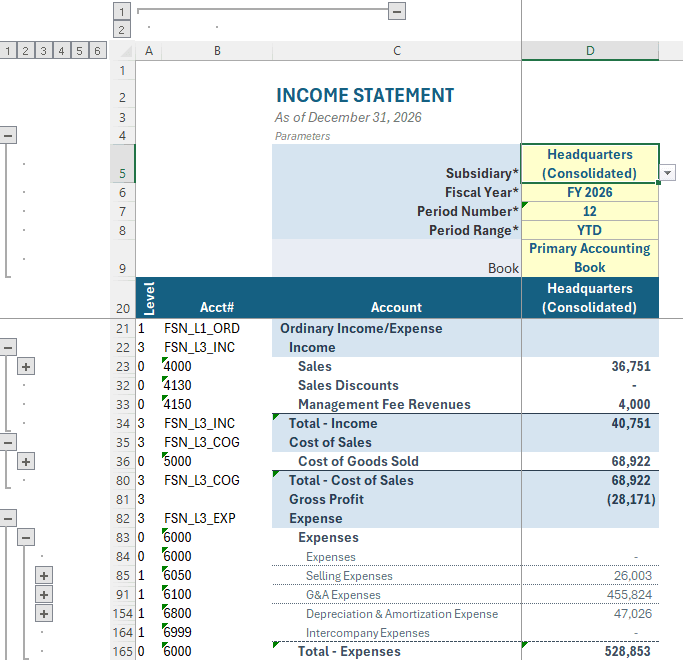
- Select the top-most parent subsidiary. In the Subsidiary parameter, choose the parent’s (Consolidated) option.
- Click Load Accounts. Finsyte builds out the template from your NetSuite chart of accounts.
Selecting the top-most parent matters. Load Accounts returns every account available to the selected subsidiary and any subsidiary beneath it, so the parent’s (Consolidated) option brings in the full account list for the organization, while a lower-level subsidiary returns only its own branch. A custom account that exists for only one subsidiary is pulled into the template in the right spot of the account tree hierarchy, with no manual placement, and accounts a given subsidiary can’t use simply return 0. Run Load Accounts again if the subsidiary is changed to ensure the correct accounts are returned in the list.
Build Out the Subsidiary Columns
With the consolidated column in place, extend the report across subsidiaries:
- Copy the first column. The new column starts as an exact duplicate of the consolidated one.
- Wire the rows to the first column. Point each row at the first column for its value, so the report logic is defined once.
- Change the cell style. Apply a distinct style from Home > Cell Styles (see Cell Styles) so anyone reviewing the workbook can see at a glance that these cells are references.
Next, remove the Subsidiary dropdown. In the Finsyte ribbon, choose Remove Dropdown in the Productivity section to clear the cell’s data validation, then enter the FSN.Range.Subsidiaries function with its Horizontal argument set to TRUE. The subsidiaries spill across the header row, with the (Consolidated) rollup first by default, so each column represents one entity rather than a name typed by hand. If a copied column returns #SPILL!, clear the cell that is blocking the array.
Using the Range function to lay every subsidiary out across the report.
Using the Range Finsyte function will ensure any newly added subsidiaries are included in the list and automatically visible rather than having static text for the different subsidiary names. The payoff is maintainability: because the subsidiary columns refer back to the first column, a change to the report is made once.
Drill Down from Any Subsidiary’s Account Balance
Because Finsyte uses live cell functions, every figure stays connected to its source. Right-click any GL balance and choose Drilldown to break it out by subsidiary, then by location, all the way down to individual transaction lines with a direct link back to the NetSuite record.
Drilling down from a subsidiary balance to the source transaction without leaving Excel.
Get Eliminations Right: NetSuite Setup, Then Intercompany Entries in Excel
Eliminations are only as clean as the intercompany setup behind them. This is a one-time checklist, worth confirming yourself or handing to your NetSuite administrator, and the order matters (NetSuite’s OneWorld setup guide (opens in new tab) covers the basics):
- Build the subsidiary hierarchy deliberately. Each subsidiary needs the correct parent, base currency, and country, because consolidation follows this tree.
- Create the elimination subsidiary. Use the Elimination checkbox on the subsidiary record, placed under the root of the hierarchy, so eliminations are booked in their own visible, auditable entity. Create it before enabling the features below.
- Enable the right features. Under Setup > Company > Enable Features (OneWorld required), turn on Automated Intercompany Management and Multi Subsidiary Customer. NetSuite then generates elimination journals (opens in new tab) during period close, and Automated Intercompany Management can’t be disabled once enabled.
- Designate intercompany accounts. Create separate (opens in new tab) intercompany A/R and A/P accounts, plus any revenue or expense accounts carrying intercompany activity, with Eliminate Intercompany Transactions checked and the parent subsidiary assigned with Include All Children.
- Let NetSuite generate representing entities. Check Automatically Generate Representing Entities under Setup > Accounting > Intercompany Preferences, and NetSuite creates and syncs a customer and vendor for every non-elimination subsidiary, including new ones. This avoids the missing or duplicate pairs that keep eliminations from netting to zero; since NetSuite can’t merge intercompany entities, inactivate any manual ones and move open balances.
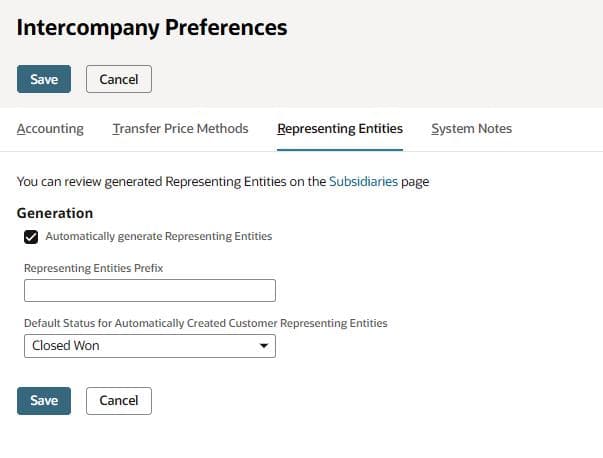
Automatically Generate Representing Entities, enabled in NetSuite’s Intercompany Preferences.
With that foundation in place, the report above inherits clean intercompany logic. Finsyte’s Intercompany Journal Entry template then supports elimination entries and custom segment mapping in Excel, so entries can be built, validated, and uploaded to NetSuite without leaving the spreadsheet. Existing NetSuite approval workflows continue to apply.
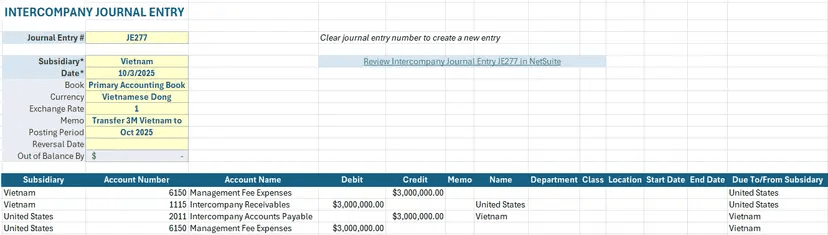
Example: an Intercompany Journal Entry in Finsyte, with elimination lines and subsidiary-level detail built directly into the template.
Bringing It Together
NetSuite provides the multi-subsidiary structure and the consolidated reporting, and a clean intercompany setup keeps eliminations accurate. Finsyte re-creates that view in Excel with one template, one consolidated column, and a row of subsidiaries driven by a Range function, all tied to live NetSuite data. Close no longer means rebuilding the same report entity by entity. Refresh, review, and drill into whatever looks off.
Ready to see it with your own subsidiaries? Book a demo today to see how Finsyte brings consolidated NetSuite reporting into Excel.